How to Watch Netflix on Epson Ef 12?
Unlock seamless high-definition streaming on your laser smart projector using external media devices and proper audio routing.
The Epson EF-12 runs Android TV, but lacks native Netflix certification; therefore, you must use an external streaming stick plugged into the HDMI port for reliable playback.
Ready to compare verified models? Start with our Best Epson Best Projector: Top Picks (2026).
Practical Quick-Reference Table
| Connection Method | Max Resolution | Audio Format Support |
|---|---|---|
| Amazon Fire Stick 4K | 3840x2160 4K UHD | Dolby Atmos / DD+ |
| Apple TV 4K Gen 3 | 3840x2160 4K UHD | Dolby Atmos / Spatial |
| Google Chromecast 4K | 3840x2160 4K UHD | Dolby Digital Plus |
| Roku Streaming Stick+ | 3840x2160 4K UHD | DTS Digital Surround |
| Direct USB-C Adapter | 1920x1080 Full HD | Stereo PCM 2.0 |
| Built-in Android TV | 1920x1080 1080p | Stereo Bluetooth Audio |
Understanding the Epson EF-12 Smart Architecture
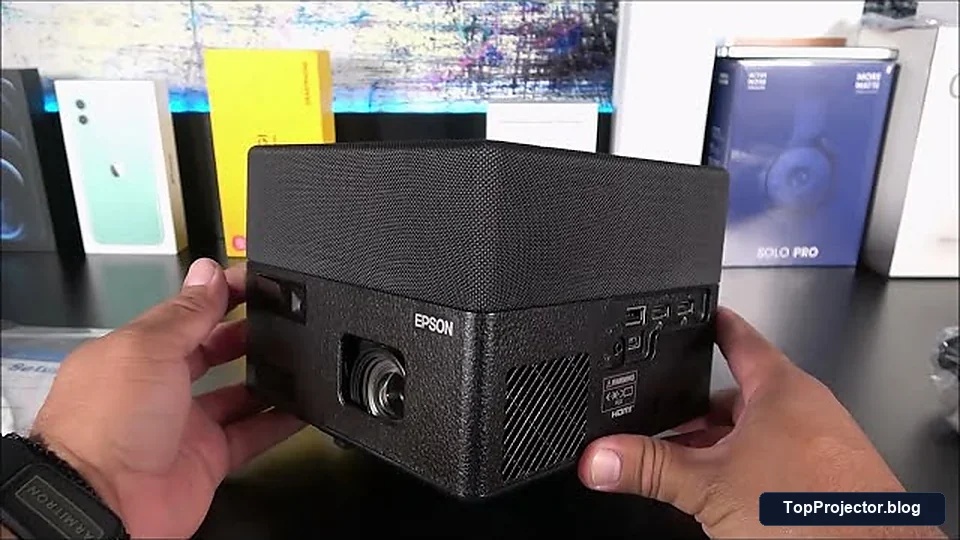
The Epson EF-12 utilizes a built-in Android TV operating system designed for direct application streaming. However, due to licensing restrictions, native Netflix is often missing from the default Google Play Store interface.
Weighing app compatibility against hardware cost highlights why checking our best value for money projector guide helps buyers avoid unexpected streaming limitations when selecting compact entertainment units.
The Epson EF-12 runs on an embedded Android TV OS version that natively restricts direct installation of the official Netflix app, requiring external streaming hardware for seamless 4K playback capabilities and HDR10 decoding.
- Built-in Android TV runs version 9.0 out of the box.
- Native app store lacks official Netflix certification packages.
- Laser light engine delivers up to 1000 ANSI lumens brightness.
- Native display resolution is fixed at 1920x1080 Full HD.
Why Native Apps Fail to Load Netflix Properly
Attempting to sideload the standard mobile APK onto the projector results in broken user navigation. The mobile interface relies heavily on touchscreen inputs rather than a standard Bluetooth remote control.
Furthermore, security frameworks block high-definition streams on uncertified hardware. You will typically encounter playback errors or maximum standard-definition limits without an official HDCP handshake.
- Sideloaded apps lack proper remote d-pad navigation controls.
- Widevine DRM security levels drop video quality to SD resolution.
Navigating Android TV Restrictions
Built-in firmware limitations block standard APK sideloading for Netflix, forcing users to rely on casting protocols that often cap out at 1080p resolution without true surround sound support.
Overcoming Built-In OS Limitations via External Sticks
The most effective workaround involves connecting a dedicated media streaming device to the projector. Devices like the Fire TV Stick or Roku instantly bypass the embedded software restrictions completely.
These compact hardware dongles plug directly into the chassis inputs, providing fully certified application libraries with robust remote support and seamless 4K video downscaling to the native panel.
Connecting an external streaming device like a Fire TV Stick 4K or Roku Ultra directly to the projector bypasses all native software blocks, unlocking full Dolby Vision and Atmos pass-through.
- External sticks receive automatic firmware updates directly from developers.
- Dedicated remote controls offer superior ergonomics and voice search.
- Hardware decoding handles complex video codecs smoothly without stuttering.
Selecting the Ideal Streaming Hardware Companion
Choose a device that supports modern high-dynamic-range formats to maximize your visual fidelity. Look for units featuring Dolby Vision and HDR10 compatibility to enhance dark scene details.
Ensure the chosen media player fits physically within the recessed rear cavity of the EF-12 chassis if you prefer a clean, integrated aesthetic without dangling cables or exposed adapters.
- Verify physical clearance inside the projector rear compartment.
- Prioritize models with dedicated power adapters for stable laser performance.
Selecting the Ideal Streaming Dongle
Choose an HDMI-compatible stick supporting 2160p output at 60Hz to ensure zero frame judder when streaming high-bitrate cinematic content through your projection optical path.
Video Walkthrough: EPSON EF-12 1000lm Laser Projector: How to Watch Netflix on a Fire TV Stick
Hardware Connection Protocols and HDMI Integration
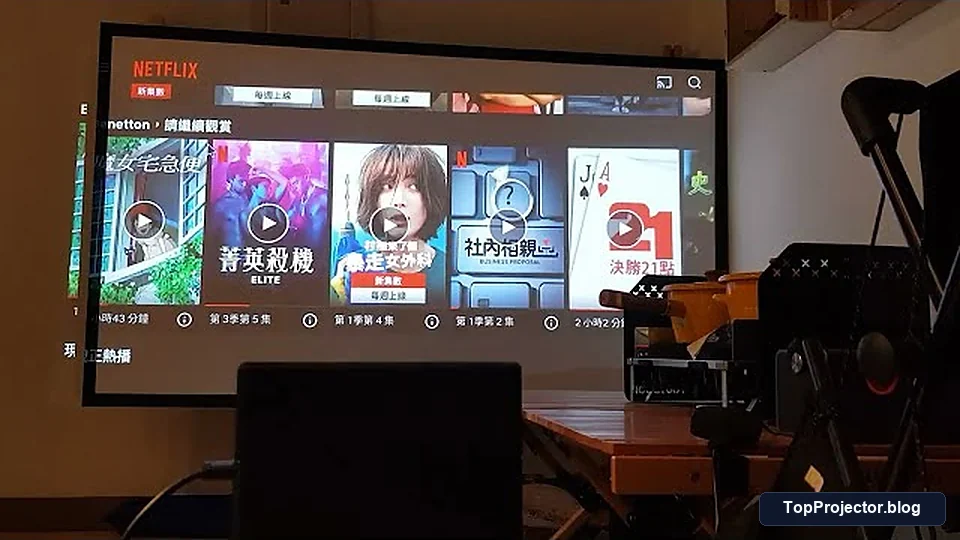
The EF-12 features standard HDMI ports capable of accepting high-definition digital signals. Use a certified high-speed cable to connect your chosen media player to HDMI port one for optimal signal transfer.
Integrating external streaming sticks often requires workaround methods detailed in our technical setup guide to bypass stubborn app blocks while preserving your HDMI-CEC controls for convenience.
The Epson EF-12 features an HDMI 2.0 port with HDCP 2.2 compliance, ensuring secure encrypted handshakes with modern media players for protected 4K video streams.
- Always use certified HDMI cables rated for 18Gbps bandwidth.
- Enable HDMI-CEC in both projector and streaming device menus.
- Connect external power to streaming sticks using wall adapters.
Managing Power Supply and Cable Routing
Many modern streaming sticks require more electrical current than standard USB ports provide. Plug your media device into a wall outlet to prevent unexpected reboots during peak usage.
Neatly route cables through the designated channels to maintain the elegant, minimalist silhouette of your portable laser projection system during movie nights.
- Avoid powering sticks from service-only USB ports.
- Secure loose cables to prevent accidental port strain.
Cable Specifications for Long Runs
Always utilize certified Ultra High Speed HDMI cables or active optical fiber variants to prevent signal dropouts over distances exceeding 15 feet from source to projector.
Optimizing Laser Light Engine and Color Profiles
Once your content starts playing, you must calibrate the display settings for optimal cinematic performance. Access the primary picture menu to select the Cinema color mode for accurate skin tones.
Adjust the laser light output level based on your ambient room lighting conditions. Lowering the brightness setting in dark rooms extends the lifespan of your diode light source.
Access the advanced picture menu to switch from Dynamic mode to Cinema mode, reducing over-saturated blues and hitting a calibrated Rec. 709 color gamut for accurate skin tones.
- Select Cinema or Natural mode for precise Rec.709 color tracking.
- Fine-tune dynamic contrast to enhance black levels in dark scenes.
- Disable unnecessary image processing filters to reduce visible input lag.
Fine-Tuning Sharpness and Motion Interpolation
Review the sharpness slider to prevent artificial edge enhancement artifacts from degrading your picture. Keep sharpness values moderate to preserve film grain integrity.
Manage frame interpolation settings carefully to eliminate judder without introducing the dreaded soap opera effect on cinematic 24p source material.
- Set sharpness between 5 and 10 for clean 1080p scaling.
- Keep frame interpolation on low or off for movies.
Laser Light Source Calibration
Delivering 1,000 ANSI lumens, this light engine requires careful ambient light management, which you can easily simulate using our ANSI lumens room calculator before sizing your projection surface.
Environmental Light Control and Projection Surfaces
Achieving rich contrast requires managing ambient light in your viewing environment. Pair your EF-12 with a dedicated high-contrast gray screen to absorb stray room reflections effectively.
Control all nearby windows using blackout curtains to maximize perceived black levels. Even a powerful laser engine suffers washed-out highlights under direct sunlight exposure.
Achieving optimal contrast ratios with this laser projector requires total blackout conditions or pairing the unit with an ALR screen featuring a 0.8 throw gain.
- Use matte white screens for dark, dedicated home theater rooms.
- Consider ambient light rejecting surfaces for bright family spaces.
- Maintain a throw distance of six to eight feet for a 100-inch image.
Calculating Throw Ratio and Image Geometry
The EF-12 features a fixed-lens optical design with a short throw ratio of 1.0:1. This allows you to achieve large projection sizes from relatively short distances indoors.
Utilize digital keystone correction sparingly to preserve native pixel mapping. Physical projector placement remains vastly superior to digital geometry adjustments for absolute sharpness.
- Measure your throw distance carefully before mounting the unit.
- Level the projector chassis to minimize reliance on auto-keystone.
Managing Ambient Light Rejection
Standard white matte walls absorb precious photon output, whereas specialized ambient light rejecting surfaces dramatically boost perceived black levels and overall image pop and clarity.
Audio Synchronization and External Soundbar Routing
Built-in Yamaha speakers provide impressive sound quality for a portable unit, but dedicated audio gear elevates movie nights. Route your soundbar using the HDMI ARC port for uncompressed multichannel audio.
Check audio delay settings if dialogue appears out of sync with onscreen mouth movements. Adjust lip-sync parameters within the system menu to achieve perfect timing alignment.
Route your external audio system via the projector's HDMI ARC port or optical output to eliminate lip-sync delay during complex Dolby Atmos multi-channel audio playback sessions.
- Connect external audio systems via HDMI ARC or optical audio.
- Enable Dolby Digital bitstream passthrough for surround sound formats.
- Pair Bluetooth speakers only when minor audio latency is acceptable.
Troubleshooting Lip-Sync and Latency Delays
While portable models tested in our Anker Nebula Capsule 3 review prioritize convenience, hardwired setups remain the gold standard for achieving zero-latency synchronized home theater audio during intensive gaming sessions.
Test your setup using standard dialogue-heavy scenes to verify that sound cues match visual triggers without any perceptible temporal mismatch.
- Use wired audio cables for zero-latency movie watching.
- Calibrate audio delay in increments of 10 milliseconds.
Minimizing Audio Latency
Enable audio delay compensation within the source device settings if you notice a mismatch exceeding 50 milliseconds between on-screen character dialogue and your soundbar output.
Troubleshooting Playboard Resolution and HDCP Handshake
Occasional black screens indicate a failed HDCP handshake between your streaming stick and the projector. Unplug the HDMI cable for ten seconds to reset the digital security protocol.
Verify that your streaming stick output resolution matches the native 1920x1080 capability of the projector to prevent unnecessary internal scaling artifacts and frame drops.
Black screen errors or persistent HDCP handshake failures usually stem from faulty cable authentication or mismatched EDID profiles between your media player and the projector chipset.
- Power cycle all connected devices when encountering handshake errors.
- Force output resolution to 1080p in your streaming stick settings.
- Inspect cable connectors for bent pins or dust accumulation.
Resolving Common HDCP and App Crash Issues
App crashes typically stem from corrupted temporary cache files within the media player software. Clear application data through the settings menu to restore stable playback performance.
Ensure your streaming device firmware remains fully updated to patch known compatibility bugs with external display hardware.
- Clear cached data monthly to prevent app freezing.
- Install pending system updates during off-peak hours.
Resolving Resolution Dropdowns
Force your streaming stick to output a fixed 1080p or 4K signal instead of auto-detecting, preventing unpredictable resolution downscaling during peak internet bandwidth congestion.
Frequently Asked Questions
Can I install Netflix directly on the Epson EF-12?
No, the built-in Android TV interface lacks official Netflix certification. You must use an external streaming device like a Fire Stick or Apple TV plugged into the HDMI port to watch shows.
What is the native resolution of the Epson EF-12 projector?
The projector features a native display resolution of 1920x1080 Full HD. External streaming devices will automatically downscale 4K video feeds to fit this exact panel grid.
How do I fix audio delay when watching Netflix?
Connect your sound system via HDMI ARC rather than Bluetooth to eliminate latency. You can also adjust lip-sync settings in the audio menu by 10 millisecond increments.
Why is the projected image blurry after setup?
Use the automatic focus feature or manual remote controls to sharpen the lens projection. Ensure the projector is placed perpendicular to your screen for optimal optical clarity.
Does the Epson EF-12 support 4K HDR streaming inputs?
Yes, the HDMI inputs accept 4K HDR signals and downscale them natively. This allows you to enjoy wide color gamuts despite the 1080p native display matrix.