How to Use Airplay on Projector?
Stream crisp content wirelessly to your big screen. Avoid latency issues with proper network tuning.
Successful wireless projection requires a 5GHz Wi-Fi band and native protocol support. Always verify your display hardware before initiating streams.
Ready to compare verified models? Start with our Best Home Projectors Guide.
Practical Quick-Reference Table
| Scenario / Metric | Recommended Target | Why It Matters |
|---|---|---|
| Wi-Fi Bandwidth | 5GHz Frequency | Reduces packet loss and latency |
| Signal Strength | -50 dBm or better | Prevents frame drops during mirroring |
| Network Setup | Same Local Subnet | Ensures device discovery handshake |
| Input Latency | Under 35ms | Keeps mouse movements and UI snappy |
| Resolution Target | 1080p or 4K SDR | Matches native projector processing limits |
| HDCP Compliance | HDCP 2.2 | Allows protected streaming app playback |
Verifying Native Projector AirPlay Compatibility and Protocol Standards
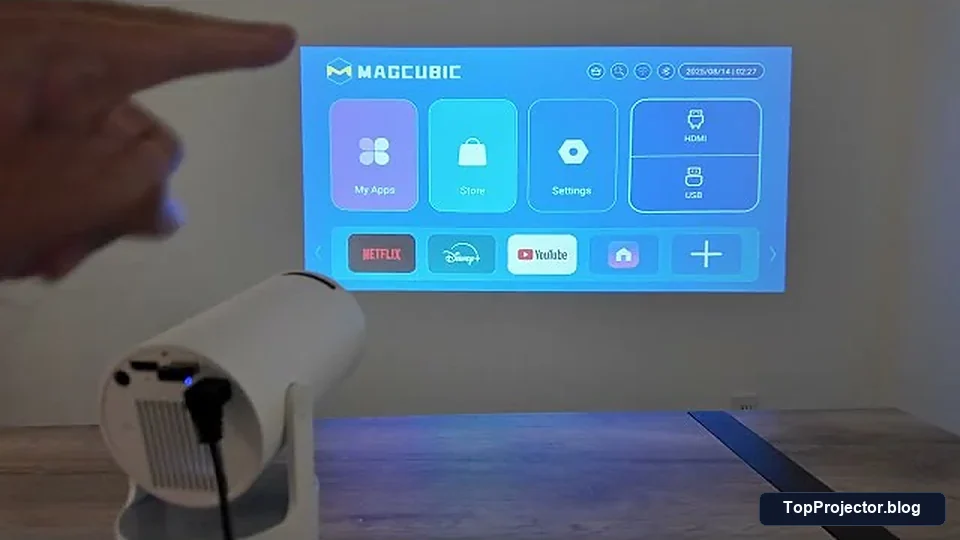
Modern high-performance home theater projectors often integrate direct wireless mirroring protocols. You must check your specific manual to confirm built-in AirPlay 2 support before attempting any direct connections.
When shopping for a best-selling outdoor projector, verifying built-in casting features prevents frustrating setup delays. True AirPlay integration ensures smooth handshake protocols and full-screen video playback without third-party dongles.
Inspecting your projector's system settings menu reveals network capabilities. Look for firmware version numbers and explicit protocol listings to guarantee your display hardware can handshake with iOS devices.
Standalone smart projectors running custom Linux builds frequently omit Apple licensing keys. Understanding these baseline hardware limitations saves you considerable troubleshooting time during your initial setup phase.
Checking native AirPlay support requires diving deep into your projector's system settings menu to confirm AirPlay 2 certification rather than generic miracast mirroring protocols found on cheap budget units.
- Check system settings for Apple AirPlay certification badges.
- Update projector firmware to the newest available release version.
- Confirm whether your projector supports AirPlay 2 or only basic mirroring.
- Verify hardware model numbers against manufacturer specification sheets online.
- Always confirm your projector chipset handles HEVC decoding locally in hardware to completely prevent annoying video stuttering during high-bitrate wireless movie streaming sessions.
- Always check official manufacturer documentation very carefully to verify explicit Apple HomeKit integration hardware badges before purchasing your next modern projection unit.
Differentiating Smart Projector OS Integrations
Android TV and Google TV implementations rarely support native Apple protocols out of the box. Users often require third-party receiver apps downloaded from official app stores to enable streaming.
Proprietary operating systems on budget projectors frequently lack background service hooks. These locked-down platforms demand external streaming hardware to achieve reliable wireless signal transmission.
- Search app stores for AirReceiver or AirScreen utilities.
- Test software stability before committing to long viewing sessions.
Identifying Software Build Numbers
Navigate to the system about page within your projector operating system to verify your firmware version supports modern Apple device pairing without requiring third-party receiver applications.
- Verify thoroughly that your current operating system build enables stable network bridging functions for completely seamless multimedia handoffs throughout multiple residential rooms.
Network Infrastructure Requirements for Latency-Free Wireless Mirroring
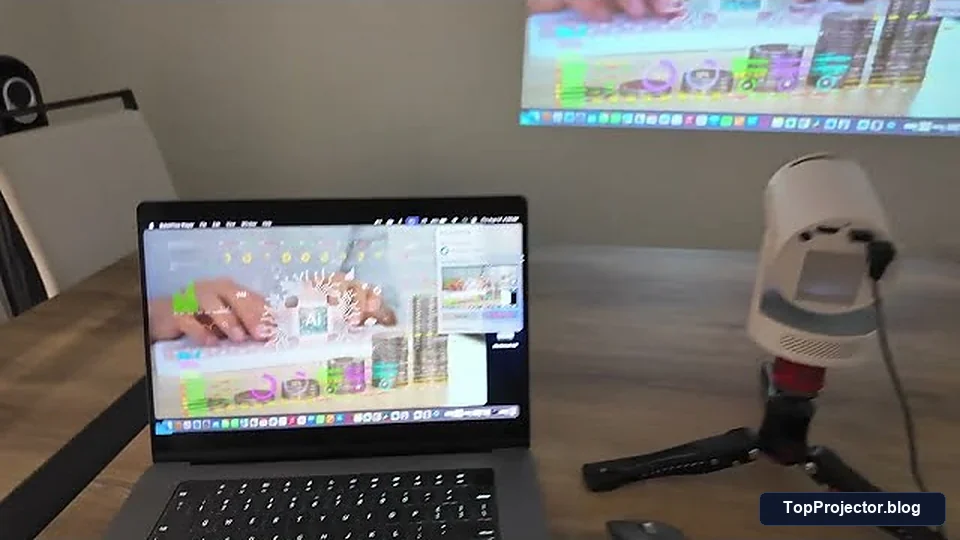
Wireless display mirroring relies heavily on robust local network traffic management. For hardwired alternatives, review our guide on connecting laptops to projectors to ensure stable data transmission.
Avoid mixed 2.4GHz and 5GHz SSIDs if your router lacks smart band steering. Connecting your projector to the 5GHz band drastically cuts down interference and lowers propagation delay.
Network congestion from neighboring routers can introduce noticeable stutter into your video feed. Maintaining a strong received signal strength indicator value ensures consistent high-bitrate data transfers.
Corporate or guest networks often isolate wireless clients for security reasons. Client isolation blocks peer-to-peer discovery packets, completely preventing your iPhone from finding the destination projector.
Wireless projection demands robust Wi-Fi architecture; avoid congested 2.4GHz bands entirely and connect your projector directly to a dedicated 5GHz channel or a wired Ethernet link.
- Position your Wi-Fi router close to the projection area.
- Disable client isolation settings in your router administration portal.
- Assign static IP addresses to prevent DHCP lease renewal hiccups.
- Prioritize the 5GHz frequency band for high-bandwidth video streams.
- Keep your primary wireless router distance well under 15 feet from the optical chassis for optimal signal strength and zero frame drops.
- Disable aggressive AP isolation settings on your local wireless gateway to allow direct peer discovery between Apple mobile devices and home theater gear.
Managing Router QoS and Bandwidth Allocation
Quality of Service settings help prioritize video traffic over background downloads. Configuring these rules guarantees your streaming session receives stable packet throughput during peak usage.
Network switches and wireless access points must support multicast routing features. Without proper multicast forwarding, Apple discovery beacons fail to reach target projection displays.
- Enable IGMP snooping on managed network switches.
- Reserve dedicated bandwidth for your home theater devices.
Router QoS Configuration
Enable WMM prioritization inside your router advanced settings menu to reduce input lag and packet loss during high-framerate wireless video mirroring sessions.
- Prioritize streaming multimedia data packets over background file downloads to successfully maintain stable bandwidth allocation throughout long movie nights.
Video Walkthrough: How to Use Apple AirPlay 2 with Epson Projectors | Wireless Projection Guide
Step-by-Step Execution for Streaming from Apple Mobile Devices
Initiating a wireless stream from an iPhone or iPad requires a simple swipe gesture. Pull down the top-right corner of your screen to reveal the iOS Control Center interface.
Locate and tap the Screen Mirroring icon represented by two overlapping rectangles. Your Apple device will instantly begin scanning the local subnet for available display receivers.
Select your target projector or connected Apple TV from the discovered device list. Enter the on-screen passcode if prompted by the projection interface to complete the handshake securely.
Rotate your mobile device to landscape orientation to fill the projection canvas properly. Adjust the native aspect ratio settings on your projector if letterboxing appears around the image.
Swipe down from the top right corner of your iOS screen to open Control Center, then tap the Screen Mirroring icon to initiate local network discovery.
- Swipe down from the top-right corner to open Control Center.
- Tap the Screen Mirroring toggle to initiate device discovery.
- Select your projector from the populated network device list.
- Input the four-digit security PIN displayed on your projection screen.
- Select your specific branded projector model name directly from the active AirPlay device connection list displayed on your mobile operating system menu.
- Toggle off your smartphone low-power battery saving mode right away to completely prevent sudden dropped frame rates during high-definition video playback tasks.
Adjusting Display Scaling and Audio Routing
Once connected, verify that system audio routes through your home audio receiver. You can manually redirect sound outputs using the media control widget within the Control Center.
Overscan settings on your projector might crop the outer edges of your phone UI. Check your projector menu to ensure 1:1 pixel mapping is active for maximum sharpness.
- Select external audio destinations via the AirPlay audio menu.
- Disable digital keystone correction if geometric distortion is minimal.
Bypassing PIN Pairing Errors
If your projector prompts for a security code, verify the four-digit PIN matches the onscreen prompt precisely before transmitting high-bitrate digital video feeds.
- Quickly reset your local network connection credentials whenever annoying authorization timeouts severely disrupt your primary initial pairing sequence setup steps completely.
Utilizing External Hardware Workarounds for Non-Smart Projector Models
If your display lacks native AirPlay, reading our Epson Home Cinema 3800 review highlights why external streaming hardware like an Apple TV 4K provides a superior streaming workaround.
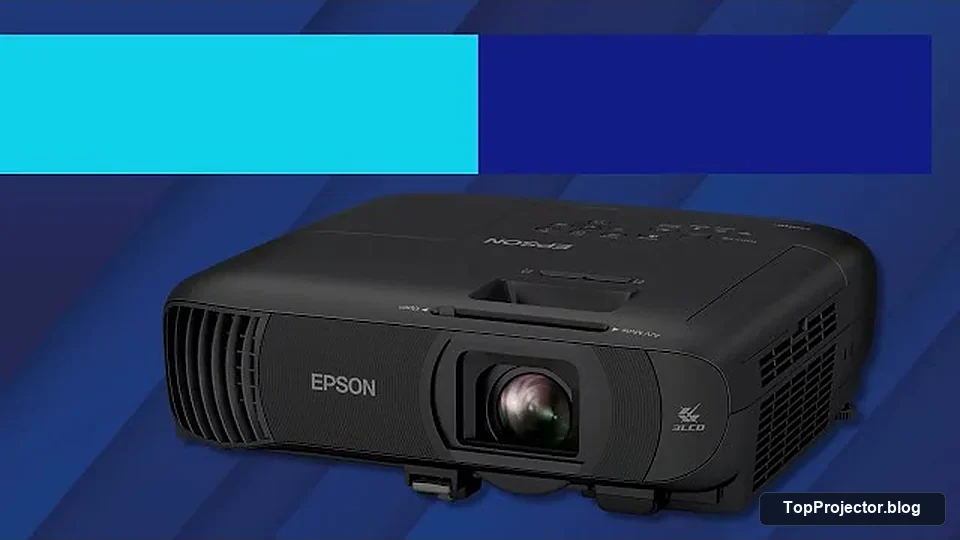
Plug the external streaming box into an available HDMI input port on your projector. This configuration leverages powerful dedicated hardware for flawless protocol handling and high-framerate playback.
Compact streaming sticks offer a cost-effective alternative for budget-conscious home theater enthusiasts. Ensure the selected stick supports dual-band Wi-Fi to prevent network bottlenecks during heavy usage.
External receivers bypass internal projector processing limitations, often delivering superior color accuracy. Dedicated media hubs also provide consistent software updates independent of your projector lifespan.
When your optical chassis lacks smart features, plug an Apple TV 4K or Roku streaming stick directly into an available HDMI 2.0 port for seamless AirPlay functionality.
- Connect an Apple TV 4K to an HDCP 2.2 HDMI port.
- Power external streaming sticks using dedicated wall adapters.
- Select the correct HDMI source channel on your projector remote.
- Configure CEC settings for synchronized power control across devices.
- Always ensure your external streaming media player utilizes an independent wall power adapter rather than weak projector USB ports to maintain stable wireless performance.
- Carefully configure your HDMI-CEC settings properly for unified power control and convenient audio volume adjustments across all connected living room devices.
Choosing Between Dedicated Streamers and Wireless Dongles
Generic wireless display adapters often struggle with proprietary Apple network protocols. Investing in certified hardware guarantees stable handshakes and seamless high-definition content delivery.
Consider power delivery requirements when mounting streaming hardware near ceiling installations. Using long power cables prevents unexpected reboots during extended movie viewing sessions.
- Verify HDCP compliance on all intermediary AV receivers.
- Check power output ratings on USB service ports.
Powering External Dongles
Always use certified Ultra High Speed cables capable of handling full bandwidth requirements for pristine 4K video pass-through without experiencing signal degradation.
- Always avoid using cheap physical extension adapters that introduce unwanted signal jitter into the delicate digital transmission chain during movie playback.
Managing DRM Restrictions and High-Bandwidth Video Playback Quirks
Digital Rights Management protocols frequently interfere with wireless screen mirroring attempts. Premium subscription services block direct mirroring to prevent unauthorized content duplication over local networks.
Attempting to mirror Netflix or Disney+ often results in a black screen with audio. Utilizing the native app inside an Apple TV box bypasses these DRM mirroring blocks successfully.
AirPlay direct streaming sends video URLs straight to the target receiver hardware. This method allows the playback engine to fetch high-bitrate streams independently of your phone.
Web browsers on mobile devices can occasionally mirror protected video streams directly. Always test specific content platforms beforehand to understand their unique casting restrictions and behaviors.
Premium streaming services enforce strict Digital Rights Management protocols that frequently trigger black screens or audio-only output when mirrored wirelessly over standard AirPlay connections.
- Use built-in streaming apps instead of mirroring protected video feeds.
- Initiate direct AirPlay streams from media apps when available.
- Check subscription terms regarding external display output permissions.
- Verify HDCP chain integrity between source, receiver, and projector.
- Always launch native applications directly on your connected streaming stick instead of casting protected video content from a phone to bypass aggressive HDCP encryption barriers.
- Thoroughly verify strict HDCP 2.2 handshake compatibility across all external signal repeaters and modern AV receivers integrated within your home theater signal chain.
Understanding Direct Streaming Versus Full Screen Mirroring
Direct streaming delegates heavy decoding workloads to the projector or media box. This approach preserves your phone battery and delivers uncompressed 4K video resolutions.
Screen mirroring simply captures your mobile display frame by frame in real time. This introduces compression artifacts and increases overall input lag during fast motion sequences.
- Look for the AirPlay cast icon inside media playback windows.
- Reserve full-screen mirroring for presentations and non-DRM apps.
Direct App Execution
Quickly lower output resolution settings down to 1080p if persistent bandwidth limits or hardware handshake failures continue to severely disrupt your movie night.
- Always temporarily disable auto-framerate switching inside system settings menus to test basic video compatibility parameter thresholds very carefully before troubleshooting further.
Troubleshooting Connection Failures, Audio Sync Drift, and Packet Loss
Intermittent connection drops usually stem from local wireless interference or weak signals. Restarting both your mobile device and the projector often clears stuck network sockets.
Audio and video synchronization drift ruins the immersion of home theater viewing. Adjusting audio delay settings in your AV receiver helps compensate for wireless transmission latency.
Updating all participating network devices eliminates known firmware bugs affecting Bonjour discovery. Outdated router firmware frequently blocks necessary multicast packets required for stable handshakes.
If your projector fails to appear on the device list, toggle Wi-Fi off and on. This forces your mobile device to broadcast fresh discovery queries across the local subnet.
Persistent audio delay during wireless streaming usually stems from buffer bloat; restart both your source device and projector to clear temporary network sockets instantly.
- Reboot your Wi-Fi router and wireless access points.
- Toggle Wi-Fi connections on your iPhone to refresh discovery.
- Adjust audio sync offsets to correct lip-sync errors.
- Install available firmware patches for your display hardware.
- Always switch your wireless access point channel to a less crowded DFS frequency to easily eliminate sudden packet drops caused by local wireless interference.
- Thoroughly clear cached network settings on your primary smartphone mobile device to restore normal Bonjour discovery protocols for immediate wireless device pairing.
Isolating Subnet and Firewall Communication Barriers
Advanced home networks using virtual VLANs often block device discovery packets. Ensure your Apple device and projector reside on the exact same untagged network segment.
Active firewall rules on enterprise routers can intercept local multicast traffic streams. Before mounting, use our throw distance calculator to verify precise screen placement geometry in your room.
- Disable guest network isolation features immediately.
- Verify subnet masks match across all connected hardware.
Isolating Channel Congestion
Always disable nearby Bluetooth accessories temporarily to prevent overlapping 2.4GHz spectrum interference from ruining your otherwise stable high-definition wireless video stream.
- You must carefully inspect strict home router firewall rules blocking multicast network traffic necessary for successful AirPlay initialization handshake sequences right today.
Optimizing Display Settings and Motion Handling for Wireless Feeds
Wireless video feeds benefit from careful calibration to match cinematic standards. Adjust your projector color temperature to Warm or D65 for accurate skin tones during movie playback.
High input lag makes wireless cursor navigation feel sluggish and unresponsive. Enable game mode on your projector to minimize internal image processing and reduce latency.
Ambient room light washes out projected images, destroying perceived contrast ratios. Controlling surrounding illumination preserves shadow detail and enhances overall color saturation significantly.
Check your projector's sharpness and noise reduction filters during video streaming. Excessive digital processing introduces artifacts into compressed wireless feeds, degrading fine textural details.
Wireless video compression introduces noticeable macro-blocking; navigate to your projector image menu and enable Noise Reduction while disabling aggressive frame interpolation settings.
- Calibrate white balance settings for accurate color reproduction.
- Enable low-latency game modes for responsive user interface control.
- Control ambient room lighting to maximize perceived contrast.
- Reduce artificial sharpness filters to prevent ringing artifacts.
- Always activate dedicated Game Mode on your optical display engine to minimize internal processing overhead and ensure responsive navigation during live presentations.
- Carefully match your mobile source output refresh rates to native 60Hz display limits to avoid heavy motion judder during fast camera panning shots.
Fine-Tuning Motion Interpolation and Frame Rates
Motion smoothing settings can introduce undesirable soap-opera effects on movies. Set frame interpolation to low or off for a natural cinematic presentation style.
Matching your source frame rate with projector refresh rates eliminates judder. Proper synchronization ensures smooth camera pans across wireless video streams.
- Disable aggressive motion smoothing for cinematic content.
- Verify refresh rate matching in your streaming device menu.
Calibrating Input Latency
Always adjust edge sharpness controls downward to mask compression artifacting without losing vital text legibility across projected computer spreadsheets and presentation slides.
- You should always permanently disable dynamic contrast features that shift luminance gamma curves during complex dark scene movie playback sessions today.
Frequently Asked Questions
Can I connect my iPhone to any projector using AirPlay?
Only projectors featuring built-in AirPlay support or connected Apple TV hardware can receive direct streams. Always verify your projector system specifications before attempting wireless connections.
Why does my screen mirroring lag when playing video games?
Wireless protocols introduce inherent transmission delays during real-time screen capture. Switch to a wired HDMI cable for competitive gaming to eliminate input lag completely.
Why is my streaming app screen completely black during playback?
Digital Rights Management protocols frequently block direct screen mirroring of protected content. Use direct app casting or an external media box to bypass these restrictions.
How do I fix my projector not showing up on my iPhone?
Ensure both devices connect to the exact same Wi-Fi frequency band. Restarting your router and toggling mobile Wi-Fi usually resolves Bonjour discovery failures instantly.
Does AirPlay streaming reduce my projected video resolution?
Network congestion and weak Wi-Fi signal strength can force automatic resolution downscaling. Maintain a robust 5GHz connection to ensure pristine high-definition video delivery.