How to Get Netflix on a Projector?
Mastering Netflix playback on your optical projector requires navigating digital rights management protocols, streaming dongles, and hardware casting limits to preserve razor-sharp cinematic clarity.
Always connect a certified streaming stick directly via an HDMI 2.0 port to bypass strict mobile copyright blocks and secure reliable 4K HDR streaming performance.
Ready to compare verified models? Start with our Best Smart Projector With Netflix: Top Streaming Picks.
Practical Quick-Reference Table
| Scenario / Metric | Recommended Target | Why It Matters |
|---|---|---|
| Connection Method | Certified HDMI Stick | Bypasses mobile HDCP restrictions |
| Color Gamut | Rec. 709 / DCI-P3 | Accurate cinematic skin tones |
| Input Lag | Under 30ms at 60Hz | Prevents operational stutter |
| Native Contrast | 2000:1 minimum | Preserves shadow detail in dark scenes |
| Brightness | 1500+ ANSI lumens | Combats ambient light washout |
| Audio Delay | Below 40ms sync | Eliminates noticeable lip-sync lag |
Architectural Methods for Streaming Netflix to Projection Optic Surfaces
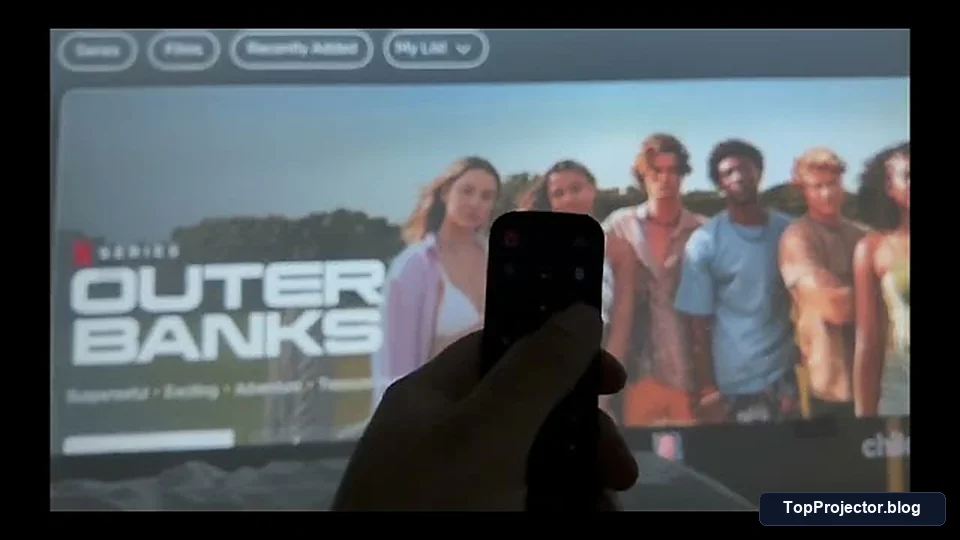
Projecting copyrighted streaming content onto a massive screen involves navigating complex hardware handshakes, HDCP encryption protocols, and varying resolution limits imposed by content providers across different devices.
Unlike traditional flat-panel televisions with integrated smart software, digital projectors often lack native licensing agreements for high-definition streaming applications due to strict security requirements.
Choosing the correct connection pathway ensures your setup maintains optimal color fidelity, maximum frame rates, and uninterrupted playback without encountering sudden black screens or error messages.
Architectural routing requires careful handling of HDCP 2.2 protocols when evaluating choices like our best cheap projector for presentations to ensure 4K signals pass smoothly without dropping signal integrity.
Signal chain planning must account for maximum throw ratios when interposing external capture cards or matrix switchers between your media source and primary projection surface to avoid latency spikes.
- Verify HDCP 2.2 compatibility on all connected cables and switching hardware.
- Prioritize hardwired streaming sticks over wireless smartphone mirroring whenever possible.
- Check projector firmware version before troubleshooting persistent Netflix playback errors.
- Ensure your network bandwidth exceeds 25 Mbps for stable 4K streams.
- Verify all extender boxes support 18Gbps bandwidth.
- Check projector EDID settings for optimal handshake.
Hardware Ecosystem Variations
Understanding how source hardware interacts with your optical engine helps isolate performance bottlenecks before they disrupt your cinematic viewing experience during a movie night.
Dedicated media players handle video decoding locally, whereas casting solutions rely heavily on local network stability and phone battery performance.
- Standalone streamers offload processing from the projector motherboard.
- Wireless casting introduces compression artifacts and frame drops.
Optical Path Integrity
Maintaining uncompressed bitrates demands certified Ultra High Speed HDMI cables capable of sustaining 48Gbps throughput over long runs to your ceiling-mounted projection hardware setup.
Avoid cheap passive splitters that strip HDCP handshakes, immediately triggering standard definition fallbacks on protected content streams like Netflix Ultra HD transmissions.
- Ensure cables are CL3 rated for in-wall routing.
- Test signal stability prior to final mounting.
Utilizing Dedicated HDMI Streaming Devices and Hardware Dongles
Plugging an external media player directly into an HDMI port remains the most foolproof method for streaming high-resolution video content without software crashes or licensing conflicts.
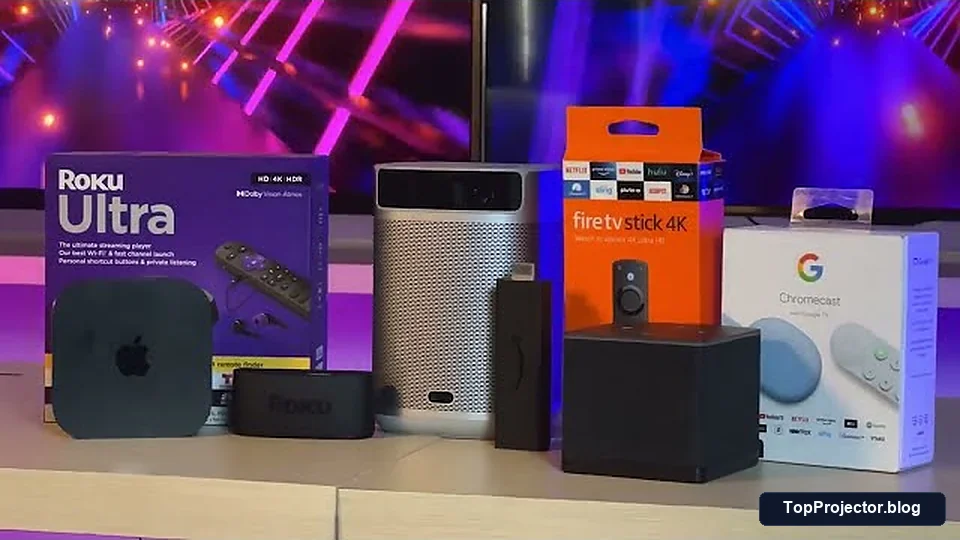
Devices running dedicated operating systems feature official manufacturer certification, guaranteeing full access to high-tier video codecs and multichannel spatial audio formats like Dolby Atmos.
When utilizing external dongles, always connect them to a powered HDMI input or utilize an independent USB wall adapter to maintain stable operating voltages during peaks.
Dedicated hardware dongles bypass internal OS limitations by leveraging native Widevine L1 certification, unlocking full 1080p and 4K playback directly through an open HDMI port on your projector.
Streaming sticks require stable power delivery, so avoid underpowered USB ports on older projectors and utilize dedicated wall adapters to prevent unexpected reboots during long viewing sessions.
Configure your streaming stick output to match your projector's native resolution and refresh rate, locking in 24Hz cinema cadences to eliminate judder on panning shots.
- Use premium high-speed HDMI cables rated for at least 18 Gbps bandwidth.
- Enable HDMI-CEC to control projector power using your streaming remote.
- Select appropriate audio passthrough settings within the media player menu.
- Avoid cheap uncertified splitters that break HDCP authentication chains.
- Select dongles with native ethernet adapters for reliability.
- Update device firmware before establishing primary accounts.
Video Walkthrough: Streaming Netflix on XGIMI Projector - It's Easier than You Think
Direct Native Smart Projector OS Integration vs DRM Constraints
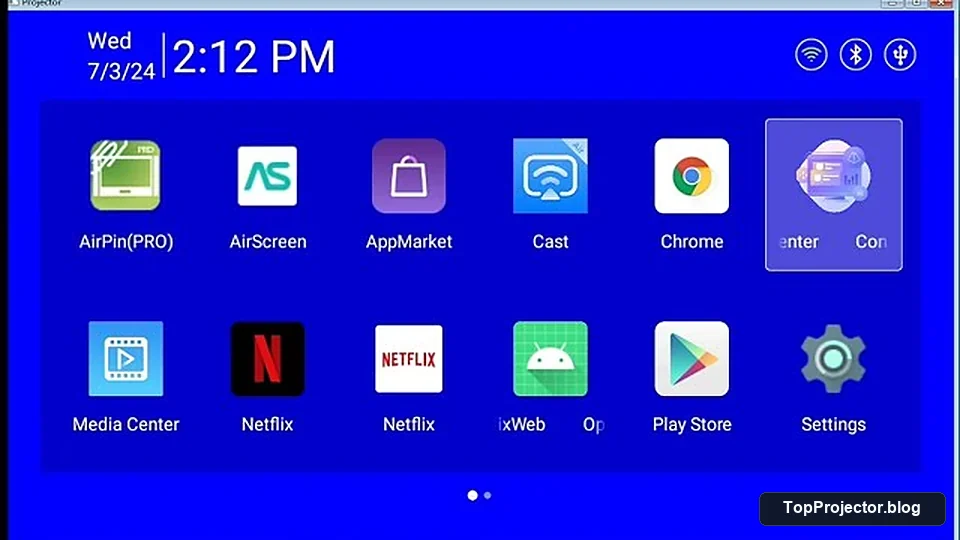
Many modern smart projectors feature built-in operating systems, yet running Netflix natively can prove frustrating due to rigorous digital rights management certification standards required by developers.
If a projector lacks official software partnership with streaming providers, downloading generic application APK files often results in lower standard-definition resolution or broken remote navigation.
Manufacturers frequently circumvent this limitation by bundling a pre-configured streaming dongle directly in the retail box, giving users instant access to fully certified software interfaces.
Many native projector operating systems lack official licensing agreements, forcing users to navigate cumbersome workarounds because DRM restrictions block high-definition streams on unofficial apps.
Smart projectors running modified Android builds often require sideloaded APK files, an issue we highlighted in our XGIMI Horizon Pro review when testing native app limits and home theater standards.
Always check manufacturer firmware update notes, as silent security patches occasionally break certificate chains required for uninterrupted Netflix playback on proprietary smart platforms.
- Check specification sheets for official software certification logos.
- Never trust generic marketing claims regarding built-in application stores.
- Expect lower resolutions if sideloading unverified streaming application files.
- Utilize external hardware if native apps stop receiving security patches.
- Rely on certified Android TV builds whenever possible.
- Avoid unofficial third-party app stores for streaming.
Smartphone and Laptop Casting Workarounds via USB-C and Miracast
Mirroring your personal mobile phone screen directly onto a large projection surface often fails during Netflix playback due to aggressive anti-piracy encryption protocols built into the application.
While basic web browsing mirrors seamlessly over wireless protocols, encrypted video streams fail. Before casting, consult our screen size and viewing distance calculator to map out proper projection geometry.
Hardwiring your laptop via a dedicated USB-C to HDMI adapter bypasses wireless casting restrictions entirely, replicating your desktop workspace cleanly onto the optical projection surface.
USB-C Alt Mode connections offer a reliable wired alternative, transmitting uncompressed video signals directly from modern laptops while avoiding the inherent compression artifacts of wireless casting protocols.
Miracast and AirPlay solutions frequently suffer from severe input lag and audio drift, making them frustrating choices for critical movie viewing environments in dedicated home theaters.
When casting from mobile devices, ensure your local network prioritizes the 5GHz Wi-Fi band to minimize packet loss and maintain stable bitrate delivery during heavy streaming sequences.
- Expect black screens when attempting wireless app mirroring of Netflix.
- Use physical cable connections to bypass mobile HDCP streaming blocks.
- Confirm your laptop USB-C port supports native DisplayPort alternate mode.
- Adjust operating system display scaling to prevent edge clipping.
- Use shielded USB-C cables for long distance runs.
- Disable background downloads on casting source devices.
Optimizing ANSI Lumens and Native Contrast Ratios for Dark Room Viewing
Achieving vibrant visual fidelity during evening streaming sessions requires balancing your projector output against ambient room light to preserve deep shadow details and saturated color primaries.
Selecting a model with at least 2000 ANSI lumens ensures cinematic content remains vivid, even when controlling minor light pollution in a dedicated living room theater space.
Pairing high brightness with an adequate native contrast ratio prevents dark cinematic scenes from appearing washed out or gray during high-dynamic-range movie playback sequences.
Achieving true cinematic immersion in a dark room requires balancing at least 1500 ANSI lumens with a high native contrast ratio to prevent washed-out blacks during night scenes.
Ambient light rejecting screens actively absorb off-axis reflections, preserving shadow detail and color accuracy even when projecting standard dynamic range or HDR10 encoded video content.
Calibrate your projector's gamma curve carefully to preserve shadow detail, ensuring dark sequences in your favorite series remain visible without crushing crucial near-black gradients.
- Install a high-contrast gray projection screen to improve black levels.
- Control ambient room illumination using blackout curtains or smart blinds.
- Calibrate white balance settings to match standard cinematic color temperatures.
- Avoid utilizing dynamic iris features if they introduce distracting pumping artifacts.
- Control stray light from LED indicators in the room.
- Verify black levels using standard calibration test patterns.
Audio Routing Protocols and Lip-Sync Latency Mitigations
Crisp dialogue is essential for immersion, requiring careful routing away from internal speakers. Follow our guide to routing projector audio to connect external soundbars and prevent lip-sync delays.
Utilizing an HDMI eARC connection ensures lossless audio formats pass effortlessly from your streaming source to an external audio receiver without introducing noticeable lip-sync delays.
If you experience temporal mismatches where voices lag behind actor movements, adjust the audio delay settings within your media player or receiver configuration menu immediately.
Audio routing via optical or eARC connections prevents frustrating lip-sync errors by bypassing the projector's internal processing pipeline and feeding discrete multi-channel audio directly to AV receivers.
When experiencing severe audio delay, enable your display's audio delay compensation feature or adjust milliseconds manually to achieve perfect synchronization with fast-moving onscreen dialogue.
Uncompressed LPCM and bitstream pass-through settings must be configured correctly within your source device to prevent downmixing stereo limitations on complex Dolby Atmos soundtracks.
- Route audio through an AV receiver before passing video to projectors.
- Enable bitstream audio output for proper multi-channel surround decoding.
- Utilize optical audio cables if HDMI pass-through features prove unreliable.
- Test synchronization using specialized test patterns or dialogue scenes.
- Prioritize eARC connections for lossless audio formats.
- Test multi-channel separation with dedicated diagnostic tracks.
Comprehensive Diagnostic Checklist for Common Netflix Playback Failures
Troubleshooting sudden streaming interruptions involves checking physical cable connections, restarting connected hardware, and verifying network stability before assuming a catastrophic component hardware failure.
If error codes appear on your projection screen, consult official support documentation while ensuring your streaming device runs the latest available firmware updates and security patches.
Maintaining clean optical lenses and unobstructed ventilation pathways guarantees your projection equipment operates at peak performance levels throughout extended cinematic viewing marathons.
Troubleshooting error codes usually points to handshake failures, so power-cycling your entire signal chain can reset HDCP handshakes and restore normal high-definition streaming functionality instantly.
Inspect physical cable connections for bent pins or loose terminations that disrupt critical data lanes required for secure Digital Rights Management verification loops during startup.
Clearing application cache files on external streaming dongles resolves sluggish UI performance and fixes unexpected freezing bugs encountered during heavy binge-watching sessions on projectors.
- Power cycle all streaming devices and projectors to clear cache.
- Test alternative HDMI ports to rule out physical interface damage.
- Verify active internet connection speeds via internal diagnostic tools.
- Replace damaged or frayed cables showing signs of signal degradation.
- Keep backup HDMI cables available for diagnostic testing.
- Monitor device operating temperatures during extended use.
Frequently Asked Questions
Why does the screen turn black when I try casting Netflix from my phone?
Encrypted video streams trigger strict digital rights management protocols that block wireless screen mirroring to protect copyrighted material. Always use a dedicated hardware streaming stick connected via a physical HDMI cable instead.
Can I download Netflix apps onto any smart projector?
Many affordable projectors lack official developer licensing agreements required to run the authentic streaming software interface. Check manufacturer specifications carefully or plug in an external media player for full compatibility.
What cable should I use to connect my laptop to the projector?
A high-speed HDMI cable or a certified USB-C to HDMI adapter works best for stable video transmission. Ensure the cable supports 4K resolution and adequate bandwidth to prevent signal dropouts during playback.
How do I fix audio delay when watching movies?
Adjust the lip-sync or audio delay settings inside your streaming media player or AV receiver configuration menu. Routing audio through an independent sound system rather than internal speakers often resolves latency issues.
Why does the picture look washed out during dark scenes?
Ambient room light severely impacts perceived contrast and shadow detail on large projection screens. Install blackout curtains, turn off surrounding lights, and verify your projector meets recommended ANSI lumen thresholds.