How to Connect Laptop to Promethean Board?
Connecting your laptop to an interactive Promethean board requires proper interface cables. Achieving seamless touch control and crisp resolution demands exact configuration steps.
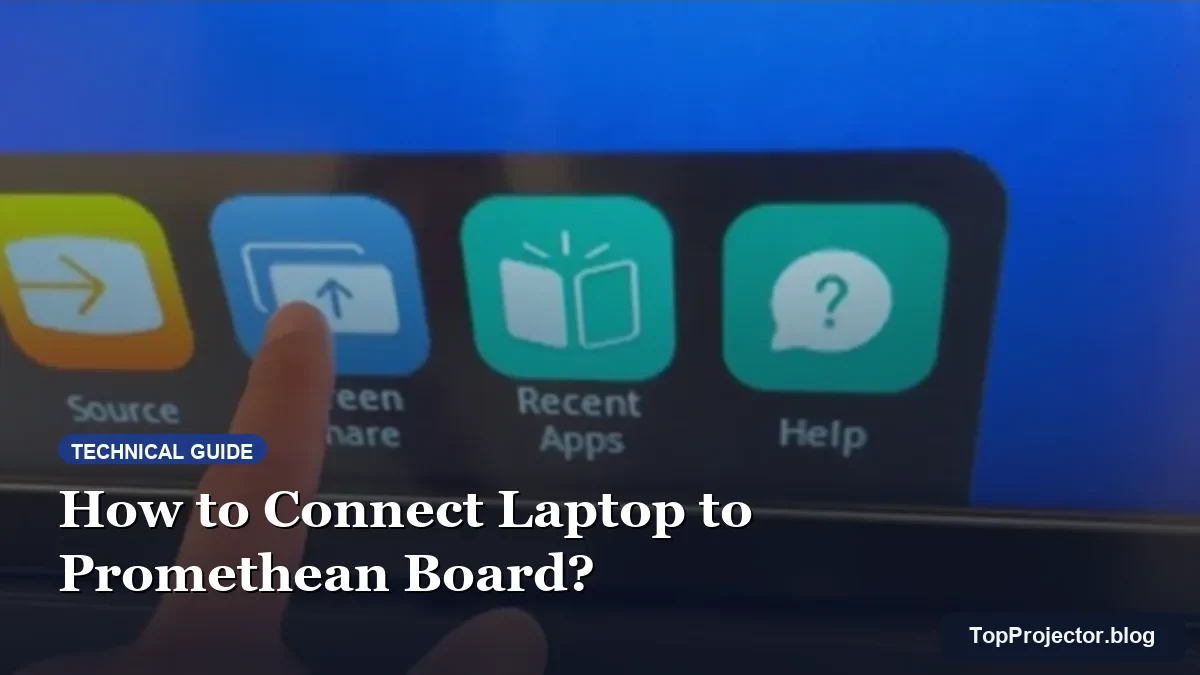
Always verify your native resolution settings and use certified high-speed cables. This prevents frustrating signal drops during collaborative presentations.
Ready to compare verified models? Start with our Best Laptop Projector For Movies: Top Cinematic Picks.
Practical Quick-Reference Table
| Scenario / Metric | Recommended Target | Why It Matters |
|---|---|---|
| Cable Length | Under 15 feet | Prevents severe signal degradation |
| Refresh Rate | 60Hz constant | Eliminates visual stutter and lag |
| Touch USB Port | USB 3.0 Type-A | Ensures zero-latency touch response |
| Resolution | 3840 x 2160 4K | Delivers pin-sharp text clarity |
| Wireless Protocol | 5GHz Wi-Fi network | Reduces packet loss during streaming |
| Audio Output | Digital HDMI Audio | Avoids analog ground-loop buzzing |
| EDID Handshake | Direct pass-through | Locks correct display aspect ratios |
Understanding Promethean Board Architecture and Laptop Integration
Promethean interactive displays combine high-definition visual panels with sensitive touch-tracking layers. Connecting an external laptop bridges your computer operating system directly with this large collaborative canvas.
Modern interactive panels function simultaneously as external monitors and touch devices. Checking our best projectors for under 200 guide helps when outfitting secondary budget spaces.
Successful integration requires two distinct data pathways working in tandem. Your video signal travels over HDMI or USB-C, while touch commands return via a dedicated USB uplink.
Failing to connect both cables leaves your display visible but completely unresponsive to finger touches. Proper port pairing is the foundation of a fully functional interactive workspace.
- Simultaneous video and touch data transmission
- Dual-purpose external monitor and input device
- Requires independent video and touch cable links
- Supports Windows, macOS, and ChromeOS platforms
Hardware Compatibility and Port Requirements
Your laptop must feature video output ports capable of driving high resolutions. Most contemporary Promethean panels natively support crystal-clear 4K resolution at standard refresh rates.
Inspect your laptop chassis for full-featured USB-C ports or standard HDMI connections. Older legacy video outputs like VGA lack the bandwidth needed for modern interactive displays.
- Verify HDMI version 2.0 or higher availability
- Check for DisplayPort Alt-Mode on USB-C ports
Physical Connectivity Options for Stable Transmission
Establishing a stable physical link between your laptop and the Promethean board depends entirely on your cable selection. High-quality copper or optical cables prevent random flickering and blackouts.
Avoid using excessively long unpowered HDMI cables. Reading our nebula capsule 3 review reveals how compact projection gear handles signal stability differently across rooms.
Using a dedicated docking station can streamline your daily classroom connection routine immensely. A single cable dock links power, dual monitors, touch inputs, and network access instantly.
Always inspect connector pins for dust or bending before inserting them into expensive ports. Damaged pins frequently cause intermittent color shifts or complete loss of audio channels.
- Use certified premium high-speed HDMI cables
- Keep total cable runs under fifteen feet
- Deploy USB-C hubs with power delivery support
- Secure cable strain reliefs to prevent port wear
Comparing HDMI Versus USB-C Direct Connections
Traditional HDMI links deliver flawless video and multi-channel audio feeds effortlessly. However, they demand a secondary USB-A to USB-B cable to enable interactive touch tracking.
Modern USB-C connections simplify this setup by bundling video, audio, touch data, and laptop charging into one thin wire. Ensure your specific USB-C cable supports DisplayPort Alt-Mode protocols.
- HDMI requires separate touch USB connection
- USB-C bundles video and touch into one cord
Video Walkthrough: Search filters
Configuring Display Settings and Extended Desktop Modes
Once physically connected, you must configure how your laptop handles the secondary display. Operating system display settings dictate whether you mirror your laptop or extend your workspace.
Mirroring duplicates your laptop screen onto the large interactive board precisely pixel for pixel. This mode works well for simple presentations where instructors face the audience directly.
Extended desktop mode transforms the Promethean board into a massive secondary monitor workspace. This configuration allows you to run reference notes privately while displaying content openly.
Access your operating system display menu by pressing designated shortcut keys. Adjusting scaling factors ensures interface text remains legible from the back of the room.
- Choose between duplicate and extended display modes
- Adjust display scaling to 150 percent for readability
- Set the Promethean board as your primary monitor
- Lock refresh rates to a steady 60Hz output
Optimizing Resolution and Aspect Ratio Matching
Mismatched resolutions cause severe image distortion and aggressive black borders on screen edges. Always force your laptop output to match the native panel resolution exactly.
Most interactive flat panels utilize a standard 16:9 widescreen aspect ratio format. Selecting non-standard computer resolutions squashes visual graphics and ruins touch accuracy.
- Lock output to native panel resolution
- Maintain correct 16:9 widescreen geometry
Calibrating Touch Responsiveness and ActivPanel Orientation
Touch accuracy relies on precise calibration between your laptop graphics card and panel sensors. Without correct alignment, your mouse cursor drifts away from your fingertip touch.
Open your operating system tablet PC settings or proprietary software calibration utilities. Follow the on-screen target markers carefully by tapping each point with absolute precision.
Ensure your touch USB uplink cable connects directly to a primary port. Using unpowered USB hubs can introduce latency that ruins smooth digital handwriting performance.
Driver conflicts between operating system touch handlers cause erratic jumps. After fixing calibration, check our throw distance calculator when planning room redesigns.
- Run built-in OS touch alignment utilities
- Avoid daisy-chained unpowered USB hubs
- Maintain clean glass surfaces for optical sensors
- Update manufacturer touch drivers regularly
Troubleshooting Touch Offset and Cursor Drift
Touch offset happens when display scaling percentages clash with touch driver mapping. Resetting both display scale and touch calibration to default values fixes this.
Dust buildup over infrared bezels can also mimic calibration errors by blocking beams. Gently wiping the perimeter frame with a microfiber cloth restores normal operation.
- Verify matching display and touch scaling
- Clean bezel infrared sensor strips thoroughly
Advanced Wireless ScreenShare and Collaborative Workflows
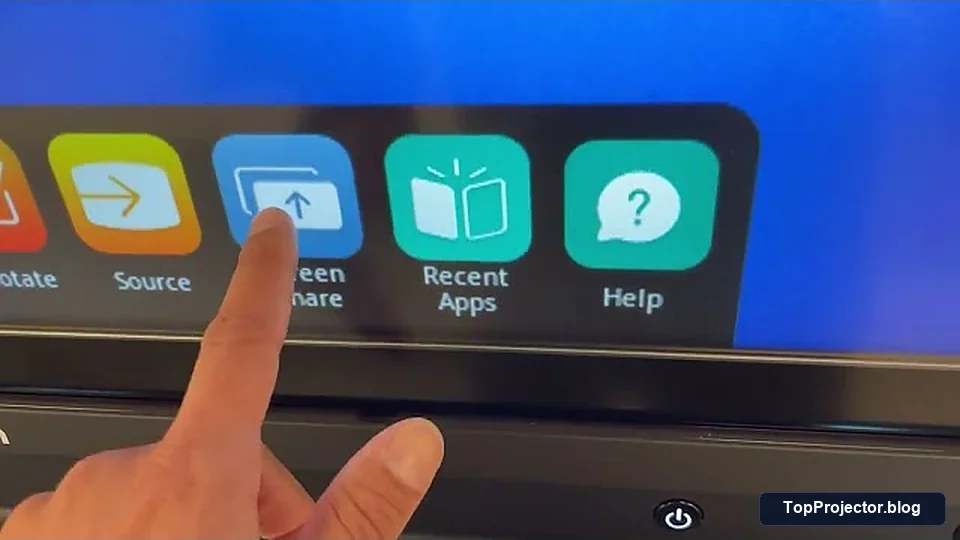
Wireless casting eliminates physical cable clutter entirely during fast-paced classroom instruction. Software solutions like Promethean ScreenShare let teachers roam freely while presenting content.
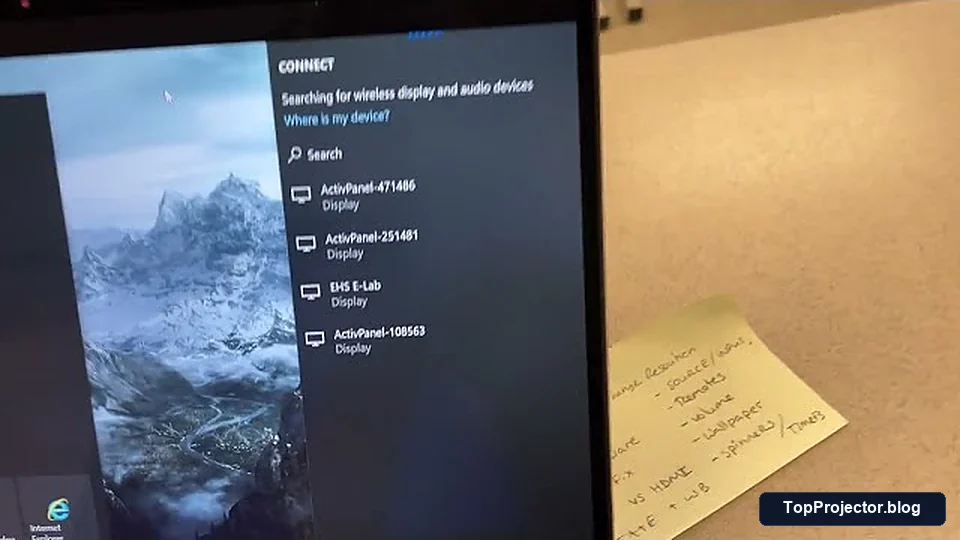
Connect your laptop and the interactive board to the exact same local network. Review our mastering laptop-to-projector connections guide for detailed signal handshake tips.
Network bandwidth congestion can introduce noticeable input latency during wireless casting sessions. Utilizing dedicated 5GHz Wi-Fi channels minimizes packet drops and keeps video smooth.
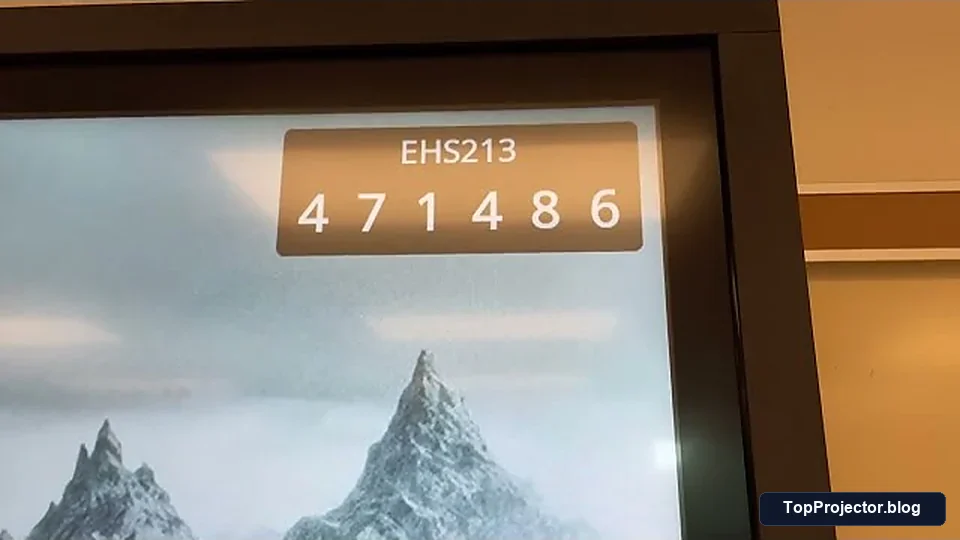
Enter the unique six-digit connection code displayed on the panel interface. Your laptop screen streams instantly without requiring messy adapters or physical port wear.
- Join identical local network subnets
- Prioritize high-speed 5GHz wireless bands
- Enter panel-generated six-digit connection codes
- Manage multiple concurrent participant devices safely
Overcoming Network Firewalls and VLAN Barriers
Institutional firewalls frequently block local device discovery across different virtual local area networks. IT administrators must whitelist specific casting ports to enable seamless wireless sharing.
Testing connection stability with a direct wired link helps isolate network problems. If wired casting works, investigate local router client isolation settings immediately.
- Request IT firewall port whitelisting
- Disable client isolation on classroom routers
Troubleshooting Common Signal Drops and Resolution Mismatches
Intermittent black screens during presentations usually indicate weak EDID handshake signals. Power cycling both devices resets the digital communication channel and restores stable video.
Overheating laptop graphics processors can drop external display outputs to protect internal hardware. Ensure adequate ventilation space around your laptop cooling vents during heavy use.
Audio dropouts often stem from incorrect default playback device assignments in sound settings. Manually select the Promethean digital audio output to route sound properly.
Keeping your laptop operating system and graphics drivers updated prevents compatibility bugs. Manufacturers frequently patch HDMI handshaking vulnerabilities through routine software updates.
- Power cycle displays to reset EDID handshake
- Monitor laptop operating temperatures and cooling
- Manually select correct audio output channels
- Install latest graphics card driver updates
Resolving No-Signal Errors and Blank Screens
A no-signal error means your laptop output is disabled or mapped incorrectly. Use quick keyboard shortcuts to cycle active display modes until the image appears.
Test the suspect cable with an alternative monitor to rule out physical breakage. Swapping a faulty cable immediately saves valuable instructional time.
- Cycle display modes using shortcut keys
- Test cables on alternative external monitors
Frequently Asked Questions
Why is my Promethean board showing my laptop screen but not responding to touch?
You forgot to connect the dedicated USB touch uplink cable alongside your video cord. Plug a USB-A to USB-B cable between your laptop and board to enable precise touch control.
What is the maximum recommended cable length for stable 4K video transmission?
Keep your passive HDMI cables under fifteen feet to prevent severe signal degradation. Longer runs require active fiber-optic cables to maintain reliable data bandwidth.
How do I fix severe cursor lag when writing on the interactive display?
Disconnect any unpowered USB hubs and plug your touch cable directly into the laptop. Verify that your system graphics driver is updated to the latest stable release.
Can I connect my laptop wirelessly without installing proprietary software?
Yes, many modern panels support native casting protocols like Miracast or AirPlay. However, installing official companion software unlocks advanced multi-user collaboration and annotation tools.
Why does my display keep flashing black during classroom presentations?
Intermittent blackouts usually stem from a failed EDID handshake or loose cable connections. Replace your cable with a certified high-speed option and restart both devices.