How to Connect Epson Projector to Laptop Wireless?
Achieve seamless cable-free presentations by mastering network protocols and projection utilities. Eliminate friction between your laptop and large-format screens.
Always verify that your laptop and Epson projector share the same local network subnet or use Wi-Fi Direct for stable, low-latency streaming performance.
Ready to compare verified models? Start with our Best Wireless Projectors: Top Picks for Home & Travel (2026).
Practical Quick-Reference Table
| Scenario / Method | Protocol Used | Best Application |
|---|---|---|
| Wi-Fi Direct | Peer-to-Peer 802.11 | Temporary rooms without router access |
| Infrastructure Mode | Local Wi-Fi Router | Permanent office and classroom setups |
| Windows Miracast | Wi-Fi Display (WFD) | Native screen mirroring without apps |
| Epson iProjection | TCP/IP Application | Advanced multi-PC moderation displays |
| Optional USB Dongle | Proprietary RF/Wi-Fi | Models lacking built-in wireless cards |
| Wired LAN Backup | RJ45 Ethernet | Zero-latency mission-critical presentations |
Understanding Epson Wireless Projection Architecture
Connecting your laptop wirelessly to an Epson projector requires understanding the underlying network transmission protocols. Modern Epson models rely on either infrastructure routing or direct peer-to-peer radio frequency links.
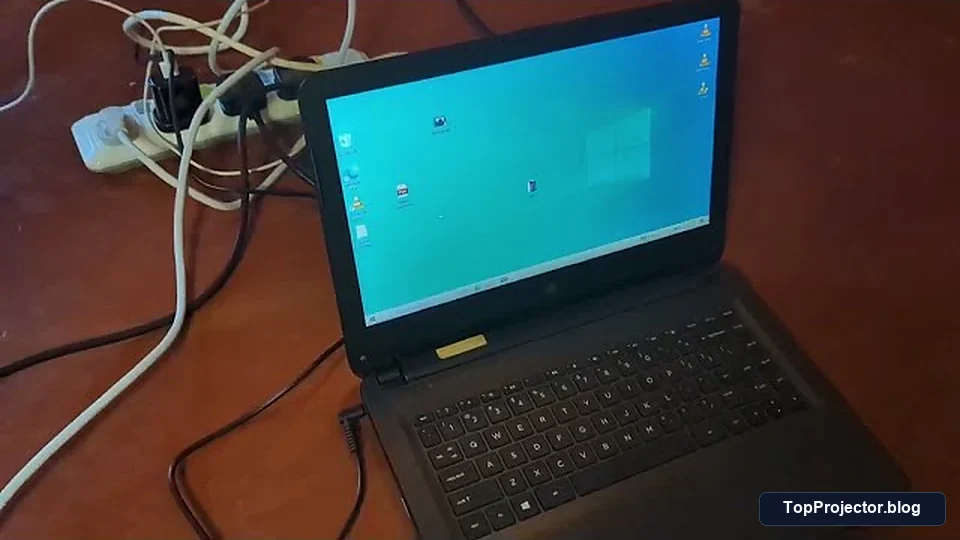
Choosing the right connection method prevents frustrating dropouts and high input latency. For alternative compact display options, read our Anker Nebula Capsule 3 review to compare real-world wireless performance.
Wireless Epson architecture relies on IEEE 802.11ac Wi-Fi protocols to transmit uncompressed frame buffers across local networks without risking severe packet drops or visual artifacting.
- Infrastructure mode routes traffic through your existing wireless access point.
- Wi-Fi Direct creates an isolated ad-hoc network between laptop and projector.
- Ensure your Epson firmware is fully updated to prevent handshake failures.
Infrastructure Versus Peer-to-Peer Modes
Infrastructure mode connects both your laptop and the projector to a central wireless router. This maintains internet access on your laptop while streaming content to the projector display buffer.
Peer-to-peer Wi-Fi Direct bypasses routers entirely by establishing a direct radio link. While convenient for mobile presenters, it temporarily disconnects your laptop from external internet services.
- Infrastructure mode maintains active internet connectivity on host laptops.
- Wi-Fi Direct eliminates dependency on corporate or home network routers.
Hardware Module Compatibility
Optional ELPAP11 USB wireless LAN adapters bridge older projector chassis to modern dual-band routers, ensuring stable 5GHz throughput for high-definition streaming without noticeable frame stutter.
Preparing Your Epson Projector Network Settings
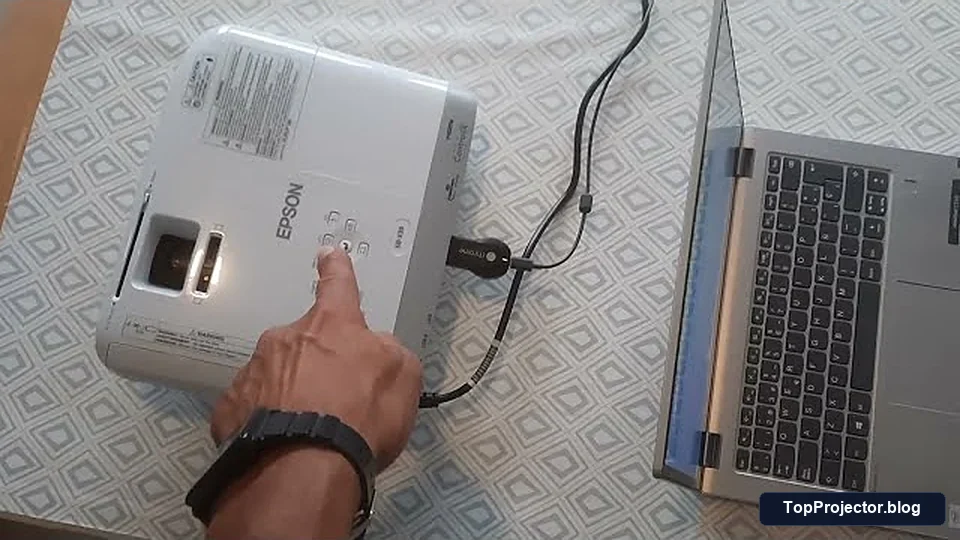
Before pairing any laptop, configure the Epson network menu properly. If ambient light compromises your image, check our ANSI lumens room calculator before selecting wireless LAN setup.
Verify whether your specific Epson projector includes an internal wireless module or requires an optional USB adapter. Older or entry-level chassis often require an external network dongle.
Accessing the projector network menu requires navigating through static IP configuration parameters to prevent DHCP lease renewal drops during critical presentations or extended viewing sessions.
- Access the projector menu via the physical infrared remote control.
- Check system information to confirm active IP address assignment.
- Enable the wireless projection service in the advanced administrator panel.
Configuring IP Addressing and Security Profiles
Static IP addresses prevent connection drops during long presentation sessions. Assigning a dedicated IP within your subnet avoids DHCP lease expiration issues during critical slides.
Configure robust security protocols like WPA2-PSK to protect your projection feed. Public spaces demand strict encryption to prevent unauthorized audience members from hijacking the display.
- Use static IP addressing for fixed boardroom installations.
- Enable WPA2 or WPA3 encryption for secure wireless transmission.
Securing Static IP Leases
Assigning a dedicated static IP address directly inside your projector network interface eliminates dynamic routing conflicts and guarantees instant handshake recognition upon laptop boot.
Video Walkthrough: How To Connect Epson Projector To Laptop Wirelessly (Set Up Epson Projector To Laptop Wirelessly)
Installing and Configuring Epson iProjection Software
Epson iProjection is the proprietary software suite required for advanced wireless management. Download the official utility directly from the Epson support portal onto your laptop.
The software scans your local network subnet to detect active Epson hardware. For portable backyard setups, see our best outdoor portable projectors overview before entering the on-screen security passcode.
Deploying the Epson iProjection utility requires administrative privileges to install virtual display drivers capable of mirroring native desktop resolutions directly to the optical engine.
- Download the correct operating system installer for Windows or macOS.
- Grant necessary firewall permissions during initial application installation.
- Use manual IP entry if automatic projector discovery fails on complex subnets.
Leveraging Advanced Moderator Control Features
Epson iProjection supports multi-pc control, allowing up to fifty connected laptops in the queue. The moderator can select which specific computer feed appears on screen.
Split-screen projection allows two distinct laptop sources to display simultaneously. This proves invaluable for side-by-side technical comparisons during collaborative engineering meetings.
- Manage multi-user queues using the built-in moderator control panel.
- Enable split-screen mode to project two separate laptop feeds side by side.
Configuring Audio Routing
Enable the integrated audio transmission toggle within the advanced iProjection preferences menu to route system sound seamlessly through the internal projector speaker array without sync delays.
Connecting Windows Laptops via Wireless Protocols
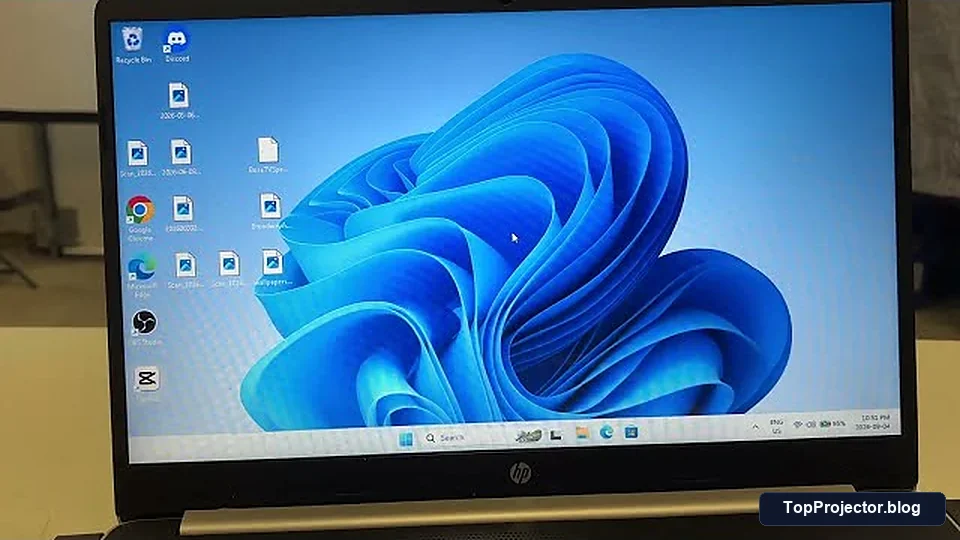
Windows laptops feature native Miracast technology for seamless display mirroring after following our ceiling projector installation guide. Press the Windows key plus K to open the Cast menu.
Native casting requires zero third-party software installations, reducing potential driver conflicts. However, complex corporate networks with isolated VLANs may block Miracast discovery packets entirely.
Windows users can bypass third-party utilities by leveraging native Miracast protocols for direct peer-to-peer casting, slashing setup times significantly during urgent business or classroom meetings.
- Press Windows plus K shortcut to launch quick display casting.
- Ensure both devices support Wi-Fi Display standards for native pairing.
- Switch to Epson iProjection if native Windows casting experiences stutter.
Troubleshooting Windows Display Output Scaling
Wireless video transmission often alters your laptop resolution and refresh rate settings. Adjust your Windows display properties to match the native projector resolution for optimal sharpness.
Select duplicate or extend desktop mode depending on your presentation requirements. Extended mode prevents audience members from viewing your private notification popups during slides.
- Match laptop output resolution to the native projector panel specs.
- Use extended desktop mode to hide confidential notifications and notes.
Using Windows K Shortcut
Pressing the Windows Key + K hardware shortcut instantly opens the Cast sidebar menu, scanning your local subnet for compatible Epson wireless projection endpoints without delay.
Video Walkthrough: How To Connect Epson Projector To Laptop
Linking macOS Laptops to Epson Displays
Apple macOS laptops lack native Miracast support, requiring alternative connection strategies. Many modern Epson projectors support AirPlay protocols, allowing direct casting from Apple menus.
If AirPlay is unavailable on your specific Epson hardware model, install the macOS version of Epson iProjection to establish stable wireless screen sharing without hardware bottlenecks.
Apple macOS environments rely on specialized network extensions because native AirPlay integration remains absent on many legacy or business-class Epson projector models.
- Check if your Epson projector firmware supports native Apple AirPlay.
- Use the macOS iProjection client for models lacking AirPlay integration.
- Verify Mac firewall settings allow local network broadcast discovery.
Optimizing Mac Audio and Video Streaming Performance
Wireless video streaming on macOS demands adequate Wi-Fi channel bandwidth. Select the 5GHz frequency band on your router to minimize packet loss and audio drift.
Adjust AirPlay audio output settings within macOS system preferences to ensure sound routes properly through the projector internal speaker system.
- Route wireless connections through less congested 5GHz channels.
- Verify audio output device settings within macOS system preferences.
Bypassing AirPlay Limitations
When native AirPlay fails, launching the iProjection Mac client and manually entering the projected QR code establishes a reliable virtual display connection instantly across networks.
Mitigating Latency, Input Lag, and Bandwidth Bottlenecks
Wireless video transmission inherently introduces minor latency compared to physical HDMI cables. High bitrates can cause noticeable cursor lag during fast-paced video playback.
Reduce video stream quality settings inside the projection utility if you experience stuttering. Lowering frame rates or compression settings preserves smooth motion delivery over congested Wi-Fi.
Wireless transmission inherently introduces input lag exceeding 80 milliseconds, making fast-paced gaming challenging while remaining entirely acceptable for presentations and movies.
- Expect slight input lag during wireless mouse movements and gaming.
- Lower application streaming resolution to reduce network congestion.
- Keep wireless laptops close to the projector to maximize signal strength.
Channel Congestion Mitigation
Switching your wireless router from the congested 2.4GHz band to a clear 5GHz channel reduces packet jitter and stabilizes high-bitrate video streams effectively during heavy usage.
Troubleshooting Common Connectivity and Firewall Errors
Connection failures frequently stem from aggressive firewall rules or antivirus software. Temporarily disable third-party firewall applications on your laptop if the projector discovery fails.
Verify that AP isolation is disabled on your wireless router settings. AP isolation blocks connected devices from communicating with each other, breaking the projector handshake process.
Windows Defender or third-party firewalls frequently block incoming UDP ports required by Epson software, causing endless connection spinning loops during handshakes.
- Disable router AP isolation to allow peer device communication.
- Add network projection utilities to your laptop firewall whitelist.
- Power cycle both laptop and projector to clear temporary cache errors.
Port Whitelisting Rules
Manually whitelisting TCP port 3298 within your operating system firewall security settings ensures smooth data transfer between your laptop and the remote projector hardware safely.
Frequently Asked Questions
Why won't my laptop discover the Epson projector wirelessly?
Discovery failures usually occur because devices are on different network subnets or Wi-Fi bands. Verify both machines share the exact same local network or use Wi-Fi Direct for direct pairing.
Can I connect my laptop without installing any software?
Yes, Windows laptops can use native Miracast by pressing Windows plus K, and compatible Epson models support Apple AirPlay. However, advanced management features require downloading Epson iProjection.
How do I fix severe lag and stuttering during wireless projection?
Wireless latency usually results from weak signal strength or heavy network traffic congestion. Move closer to the projector and switch your connection to a 5GHz Wi-Fi band.
What should I do if my Epson projector lacks built-in Wi-Fi?
Many legacy or entry-level Epson chassis require an optional wireless LAN adapter module. Purchase the official Epson USB dongle designed specifically for your projector series.
Does wireless projection reduce image resolution quality?
Wireless protocols often compress video feeds to maintain smooth frame rates over Wi-Fi. Adjust your laptop display settings to match the native projector resolution for best clarity.