How to Connect Bluetooth Speaker to Projector?
Master wireless audio integration for your projection setup. Eliminate lip-sync errors and enjoy theater-grade sound effortlessly.
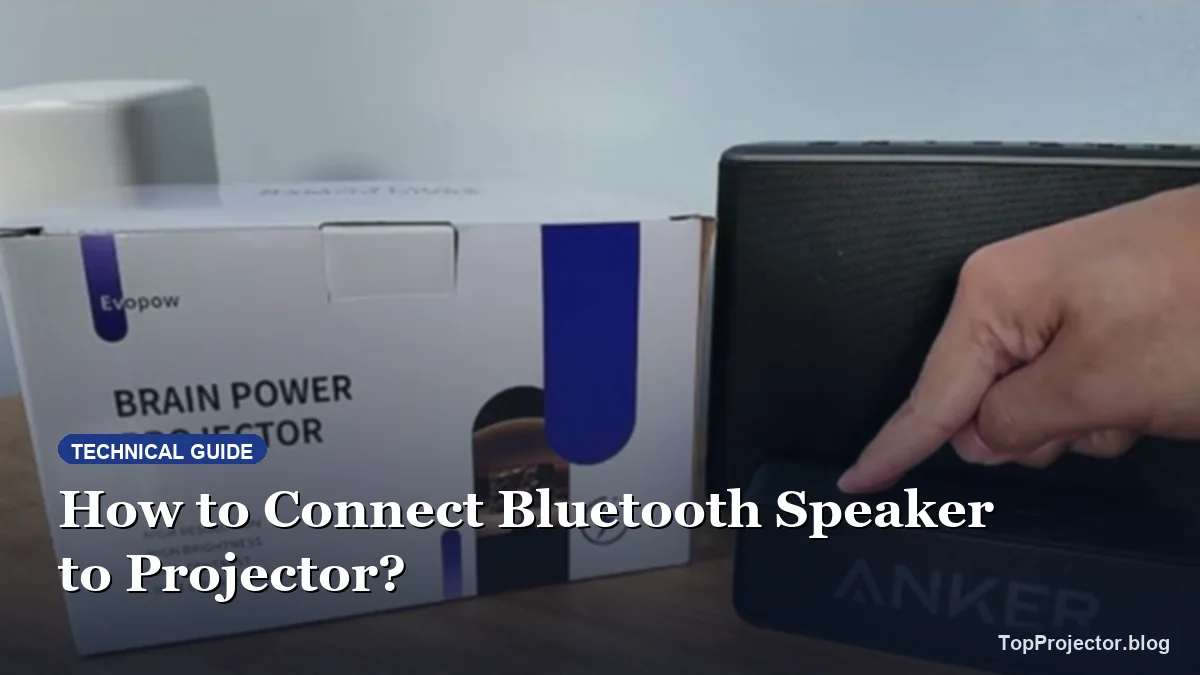
Always verify your projector features a Bluetooth audio transmitter before pairing, as many older models only accept incoming signals from mobile devices or laptops.
Ready to compare verified models? Start with our Best Speakers For Projector: Top Picks for Clear Movie Audio.
Practical Quick-Reference Table
| Scenario / Metric | Recommended Target | Why It Matters |
|---|---|---|
| Audio Latency | Under 40ms | Prevents noticeable lip-sync delay during fast action scenes. |
| Bluetooth Version | Bluetooth 5.0 or higher | Ensures stable transmission range and lower power consumption. |
| Throw Distance | Within 30 feet | Reduces signal interference and audio dropouts in open rooms. |
| Speaker Placement | Front-facing ear level | Preserves directional audio cues for cinematic immersion. |
| Backup Connection | Wired 3.5mm auxiliary | Guarantees sound output if wireless interference blocks pairing. |
| Codec Support | aptX Low Latency | Minimizes audio lag compared to standard SBC codecs. |
Verifying Your Projector Transmitter Capabilities
Many users struggle because they assume every modern display includes two-way wireless functionality. You must check your specific manual for an audio transmitter profile rather than just standard input support.
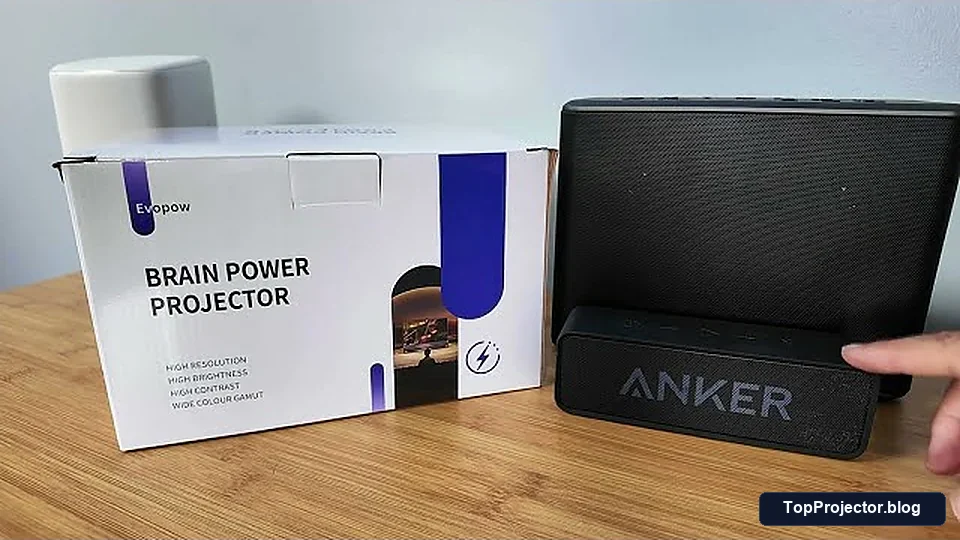
Budget smart models support wireless pairing natively. For daytime living spaces, check out our best projector for light room guide to find high ANSI lumens options.
Check your onscreen display menus under sound settings. If you spot an option labeled audio output or Bluetooth device search, your hardware supports direct wireless speaker transmission.
Without native transmitter hardware, your projector cannot send sound outward. Recognizing this hardware limitation early saves you hours of frustrating menu navigation and failed pairing attempts.
Many modern projectors feature built-in Bluetooth 5.0 or higher chips, but cheaper models only handle video input. Check your manual to confirm if the unit functions as an audio transmitter rather than a receiver.
- Confirm your model features audio transmitter capabilities in the manufacturer specifications.
- Examine system settings for an explicit Bluetooth output menu option.
- Distinguish between input-only smartphone casting and true two-way audio streaming protocols.
- Inspect rear I/O ports for missing 3.5mm audio jacks that dictate wireless necessity.
- Look for explicit Audio Out specifications in the physical user manual before assuming wireless functionality is natively supported by the internal hardware architecture of your specific projector model.
- Verify whether the system firmware supports modern codecs like aptX Low Latency to prevent disastrous lip-sync delays during high-action movie sequences and fast-paced gaming sessions.
Identifying Smart vs Traditional Hardware
Smart LED and laser models running AOSP usually feature robust wireless stacks. These embedded systems make connecting portable speakers straightforward without extra accessories.
Legacy lamp-based projectors prioritize pure optical performance over smart features. These traditional projection units rarely include internal Bluetooth chips, demanding external workarounds.
- Smart LED projectors integrate wireless audio chips natively.
- Traditional lamp projectors rely on external transmitters for sound.
Checking Proprietary Operating Systems
Smart projectors running Android TV or webOS typically expose deep Bluetooth settings, whereas custom Linux builds often hide transmitter toggles inside obscure developer menus requiring remote code entry.
- Access hidden developer options by repeatedly tapping the software build version seven times within the primary system settings menu to expose Bluetooth controls.
- Confirm that your target external speaker fully supports standard A2DP profiles for uninterrupted high-quality stereo audio streaming without unexpected wireless connection drops.
Preparing Your Wireless Speaker for Pairing
Successful wireless connections require proper initiation sequences from your audio gear. Always put your Bluetooth speaker into pairing mode before initiating searches from the projector interface.
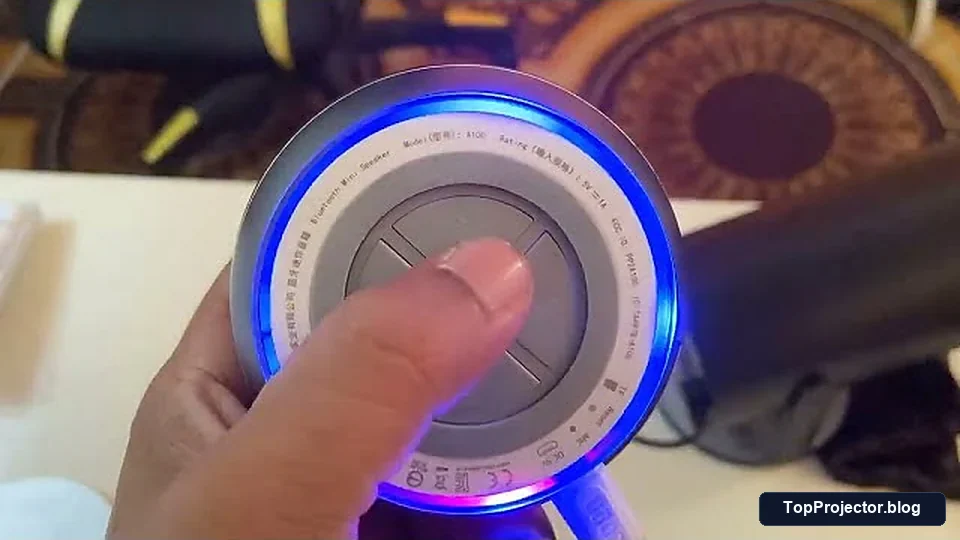
Hold down the dedicated Bluetooth symbol button on your speaker until the status indicator flashes rapidly. A solid light usually indicates an active connection to an old smartphone instead.
Disconnect any nearby phones, tablets, or laptops that might automatically seize control of the speaker. Speakers often prioritize known host devices over new unverified projectors.
Place your speaker within three feet of the projection unit during initial handshake procedures. Minimizing distance reduces radio frequency interference and ensures a clean pairing handshake.
Before syncing with your projector, disconnect all active phones or tablets from your speaker to prevent automatic reconnection conflicts that block incoming pairing signals from new host devices.
- Activate pairing mode by holding the Bluetooth button until status lights flash.
- Disconnect competing devices like smartphones to prevent auto-stealing connections.
- Keep the speaker within three feet during the initial handshake phase.
- Ensure the speaker battery level sits above fifty percent for stable pairing.
- Hold the physical pairing button on your portable speaker for at least five seconds until the status LED begins flashing rapidly to indicate discovery mode.
- Keep the wireless speaker within three feet of the projector during the initial handshake phase to maximize signal strength and eliminate environmental radio interference.
Clearing Existing Device Memories
Stubborn speakers refuse to connect when memory fills up. Reset your unit, or if upgrading hardware, check our Hisense PX3-Pro review for advanced laser optics setups.
This factory reset clears phantom pairing profiles that block new projector handshakes. Fresh pairing states ensure your projection unit finds and connects without error codes.
- Perform a factory reset if the speaker ignores new pairing requests.
- Clear old device profiles stored in the speaker memory.
Clearing Multi-Device Memory Banks
Modern Bluetooth speakers often remember up to eight devices, automatically connecting to the closest known source unless you explicitly clear the internal pairing cache.
- Perform a hard factory reset by holding down both the physical power and volume down buttons simultaneously for ten full seconds to clear memory.
- Temporarily disable Bluetooth on nearby smartphones to ensure your projector successfully claims the primary audio sink channel without experiencing frustrating interference.
Video Walkthrough: How to Connect Any Bluetooth Speaker to Projector
Navigating Onscreen Menus to Complete the Link
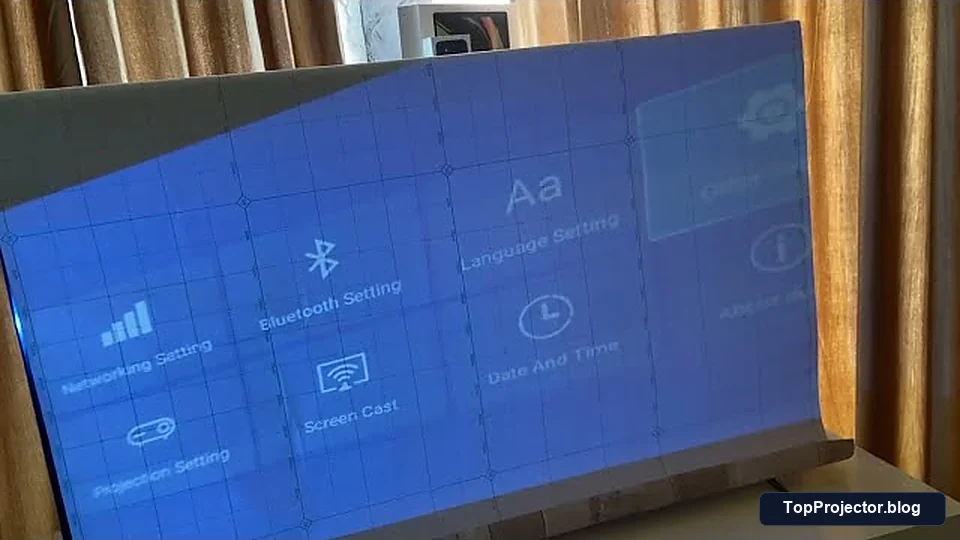
Turn on your projection system and navigate directly to the primary settings menu using your remote. Locate the network and connectivity submenu where wireless options reside.
Select the Bluetooth entry and toggle the master switch to the on position. Allow the system a few seconds to scan the immediate room for broadcasting audio hardware.
Look for your specific speaker model name in the list of discovered accessories. Click on the correct device name to trigger the secure authentication and pairing protocol.
Once the onscreen status changes to connected, test the audio channel immediately. Play a test video clip to verify both the left and right audio channels function correctly.
Navigate carefully to your projector system settings using the infrared remote control and select the Bluetooth submenu to begin scanning for nearby discoverable audio peripherals.
- Navigate to system settings and locate the Bluetooth toggle switch.
- Initiate a fresh device scan to find your portable speaker name.
- Select your exact speaker model to trigger the secure pairing handshake.
- Confirm successful connection status before closing the settings menu.
- Wait up to thirty seconds for the onscreen device list to refresh completely before erroneously assuming your portable speaker is currently undiscoverable by the system.
- Highlight the correct speaker name and press enter on your remote to establish the initial RF connection securely between both home theater hardware units.
Confirming Output Routing
Sometimes pairing succeeds, but sound still routes through internal projector fans. Double-check that your audio output setting points directly to the newly paired Bluetooth device.
Verify volume levels on both the projector operating system and the physical speaker. Low source volume can trick you into thinking the connection failed entirely.
- Check that audio output routes to the paired speaker.
- Adjust independent volume sliders on both devices.
Validating Connection Status Prompts
A successful pairing process displays a connected status icon next to the speaker name, often accompanied by an audible chime from the external driver.
- Check the main projector sound output menu to ensure the operating system automatically routed audio tracks away from the internal fan speaker.
- Test the newly established wireless link immediately by playing a standard stereo test file featuring distinct left and right channel audio separation.
Managing Audio Latency and Lip-Sync Delays
Wireless audio transmission introduces processing delays. Before adjusting lip-sync settings, use our screen size and viewing distance calculator to optimize your throw distance layout.
Access your projector advanced video or audio settings to locate lip-sync delay adjustments. Introduce a minor audio delay offset to match the visual frame rate perfectly.
High-performance Bluetooth 5.0 codecs significantly reduce transmission lag compared to older legacy standards. Check if your speaker supports low-latency protocols for optimal movie watching.
Avoid using cheap third-party adapters that lack hardware acceleration chips. Subpar adapters create intolerable half-second delays that ruin cinematic dialogue immersion.
Standard wireless audio transmission inherently introduces digital processing lag, often resulting in noticeable lip-sync delays where dialogue visuals appear mismatched with acoustic output.
- Adjust audio delay settings within the projector system menu.
- Utilize speakers supporting Bluetooth 5.0 or aptX low-latency codecs.
- Test synchronization using dialogue-heavy movie scenes for lip-sync accuracy.
- Avoid unbranded transmitters that introduce severe processing lag.
- Adjust the built-in audio delay slider inside your projector advanced settings menu until spoken dialogue perfectly matches mouth movements on the projection screen.
- Switch your media player source device to PCM stereo instead of multichannel bitstream to reduce decoding overhead on the internal projector transmitter.
Fine-Tuning Millisecond Offsets
Dialing in exact millisecond offsets requires patience and careful visual observation. Start at zero and increase the delay incrementally until explosions and dialogue align.
Different streaming apps handle audio buffering differently across various media devices. You may need minor adjustments when switching between local USB playback and streaming sticks.
- Increase delay settings in ten-millisecond increments during testing.
- Account for varying buffer times across different streaming apps.
Minimizing Latency via Codec Selection
Prioritize home theater hardware that supports aptX HD or low-latency wireless profiles to slash transmission times below the threshold of human perception.
- Permanently disable unnecessary software sound enhancements like virtual surround sound processors that add heavy computational overhead and noticeably worsen overall audio latency.
- Carefully verify that your streaming media stick or console outputs audio directly to the host projector with zero processing interface interference encountered.
Video Walkthrough: How to get better sound from your projector
Troubleshooting Failed Connections and Interference
Wireless signals suffer degradation from common household electronics like Wi-Fi routers and microwaves. Keep your projector and speaker clear of heavy electrical interference sources.
If your speaker fails to appear in the scan list, restart both units completely. Power cycling clears temporary software glitches that freeze wireless radios temporarily.
Forget the device profile inside your settings menu and restart the pairing process. Starting from a clean slate resolves most stubborn handshaking authentication errors instantly.
Ensure your projector firmware is fully updated to the latest manufacturer release. Outdated system software often contains unpatched Bluetooth driver bugs that prevent pairing.
Severe wireless interference from 2.4GHz routers and household microwaves frequently disrupts Bluetooth connections, causing audio stuttering or complete dropouts during movie playback.
- Keep equipment away from Wi-Fi routers to minimize radio interference.
- Power cycle both projector and speaker to clear temporary glitches.
- Delete old pairing profiles and start a fresh connection sequence.
- Install the latest firmware updates to resolve driver bugs.
- Move your Wi-Fi router away from the projector path and switch connected network devices to the 5GHz band to clear local airspace.
- Ensure there are no physical obstructions like thick drywall or metal studs blocking the direct line of sight between transmitter and speaker.
Resolving Hardware Incompatibility
Some older Bluetooth speaker profiles use outdated protocols that modern projectors reject. Verify that your speaker profile matches standard audio distribution device classes.
When native hardware pairing fails repeatedly, consider adding an external low-latency transmitter. These dedicated dongles plug directly into audio jacks and solve compatibility gaps.
- Verify speaker profile compatibility with modern codecs.
- Deploy an external USB transmitter dongle as a workaround.
Diagnosing Hardware Handshake Failures
Persistent wireless connection failures usually indicate stubborn firmware mismatches requiring software updates on either the projector or the external speaker system.
- Power cycle both connected devices by completely unplugging them from wall power outlets for sixty seconds to clear volatile memory buffers.
- Completely forget the device profile inside the projector system menu and reinitiate the complete pairing sequence from absolute scratch to fix communication bugs.
Maintaining Wired Backups for Critical Movie Nights
Wireless technology remains susceptible to sudden dropouts and environmental interference during crucial viewings. Always keep a wired backup cable nearby for uninterrupted movie nights.
A standard auxiliary cable or optical audio cord provides zero-latency bulletproof reliability. Hardwired connections bypass wireless handshake failures completely and instantly.
Connect an analog auxiliary cable directly to the speaker. For interactive classroom environments, consult our guide on connecting your laptop to a Promethean board for reliable signal routing.
Planning ahead with physical cable backups ensures your outdoor movie nights succeed. Dependable contingency plans save events from unexpected Bluetooth pairing dropouts.
Standard wireless convenience frequently sacrifices overall reliability, making robust wired backups essential for critical movie nights where audio dropouts are completely unacceptable.
- Keep a wired auxiliary cable ready as an emergency backup.
- Utilize physical connections for zero-latency audio reliability.
- Bypass wireless interference completely with direct analog hookups.
- Test backup ports before hosting important backyard movie nights.
- Always keep a long analog auxiliary cable nearby to quickly bypass failed Bluetooth links without ruining your home theater movie viewing experience.
- Utilize an uncompressed digital optical audio cable if your projector housing features a standard Toslink port for completely lossless signal transmission.
Selecting Reliable Backup Hardware
Invest in durable braided auxiliary cables that withstand frequent setup and teardown cycles. Quality physical connectors prevent frustrating signal crackle during quiet film scenes.
Store your backup cables in a dedicated projection accessory bag alongside remotes. Keeping gear organized ensures you never hunt for wires in the dark.
- Choose braided cables for enhanced physical durability.
- Keep backup accessories organized in a dedicated travel bag.
Choosing the Right Backup Connectors
Investing in heavy shielded HDMI cables guarantees maximum bandwidth and zero interference when reverting to a soundbar or home theater receiver setup.
- Regularly inspect all physical connector audio pins for oxidation or dust accumulation that might degrade audio signal clarity over extended periods of time easily.
- Store all backup cables in a temperature-controlled dry environment to prevent corrosion of internal copper strands and the metal connector housing securely.
Optimizing Speaker Placement for Maximum Immersion
Proper physical speaker placement transforms flat audio into an engaging cinematic soundscape. Position your portable speaker directly beneath the projected image for natural dialogue alignment.
Avoid hiding your speaker behind furniture cushions or heavy projection screen material. Obstructions muffle high frequencies and destroy the clarity of movie soundtracks.
If you use two identical wireless speakers supporting stereo pairing, space them evenly. Place them on opposite sides of the screen to create an authentic soundstage width.
Keep listening distances within reasonable bounds to prevent audio dissipation in large spaces. Outdoor environments require closer speaker positioning to compensate for open-air loss.
Proper acoustic speaker placement drastically impacts performance; position your wireless Bluetooth speaker at ear level directly facing the viewing audience for clarity.
- Position the speaker centrally beneath the projection screen.
- Keep audio paths clear of furniture obstructions and heavy curtains.
- Establish proper stereo separation using dual matching speakers.
- Adjust speaker distance based on room acoustics and volume.
- Avoid placing wireless speakers inside closed cabinets or directly behind fabric projection screens, which heavily muffles high frequencies and ruins dialogue intelligibility.
- Maintain a completely clear acoustic path between the speaker and your seating area to ensure optimal sound dispersion across the living room.
Balancing Room Acoustics
Hard tile floors and bare walls cause excessive sound reflection and hollow echo. Place rugs or acoustic panels nearby to tighten up dialogue intelligibility.
Outdoor setups lack natural boundary reflections, requiring higher speaker volume levels. Position speakers near solid walls or fences outdoors to boost bass response.
- Add soft furnishings to reduce sound reflections indoors.
- Use boundary walls outdoors to enhance bass projection.
Leveraging Room Acoustics for Depth
Carefully positioning wireless speakers near room corners naturally reinforces bass response through acoustic boundary loading, enhancing cinematic explosions and deep musical scores.
- Experiment with slight speaker toe-in angles to create a wider soundstage and much more precise directional audio cues during action movies.
- Use dense acoustic isolation foam pads underneath your speaker to eliminate unwanted cabinet vibrations transferring into wooden tables or media stands.
Frequently Asked Questions
Why won't my projector detect my Bluetooth speaker?
Your projector may lack a built-in audio transmitter chip. Ensure your speaker is actively in pairing mode and disconnected from other devices before scanning.
How do I fix audio delay during movie playback?
Access your projector settings menu and adjust the audio delay offset in milliseconds. Using speakers with Bluetooth 5.0 also minimizes processing lag significantly.
Can I connect multiple Bluetooth speakers at the same time?
Most standard projectors only allow a single active Bluetooth audio connection. You need specialized party mode hardware or an audio splitter for multiple units.
What should I do if my projector only has Bluetooth input for phones?
Input-only models cannot broadcast sound to external wireless speakers. You must plug an external USB transmitter into the audio output port instead.
Is a wired connection better than Bluetooth for home theaters?
Wired auxiliary connections eliminate latency and signal dropouts completely. They serve as an ideal failsafe backup for critical movie viewing nights.